There are 2 ways to get theme updates:
The plugin settings page allows you to configure your Envato API Personal Token in order to display a list of a purchased theme from Envato Market. This API Token is generated from build.envato.com and will allow WordPress to securely receive item updates. 
Once the Envato API connection is made from the Settings page, a list of available Themes will be shown. This will list all WordPress Themes that have been purchased through the Envato Market/ThemeForest.
The plugin Help Tab includes common problems and instructions on what to do if something doesn’t work correctly within the plugin.
Once the theme is updated, you can proceed to update theme bundled plugins and Unyson extensions, as described below.
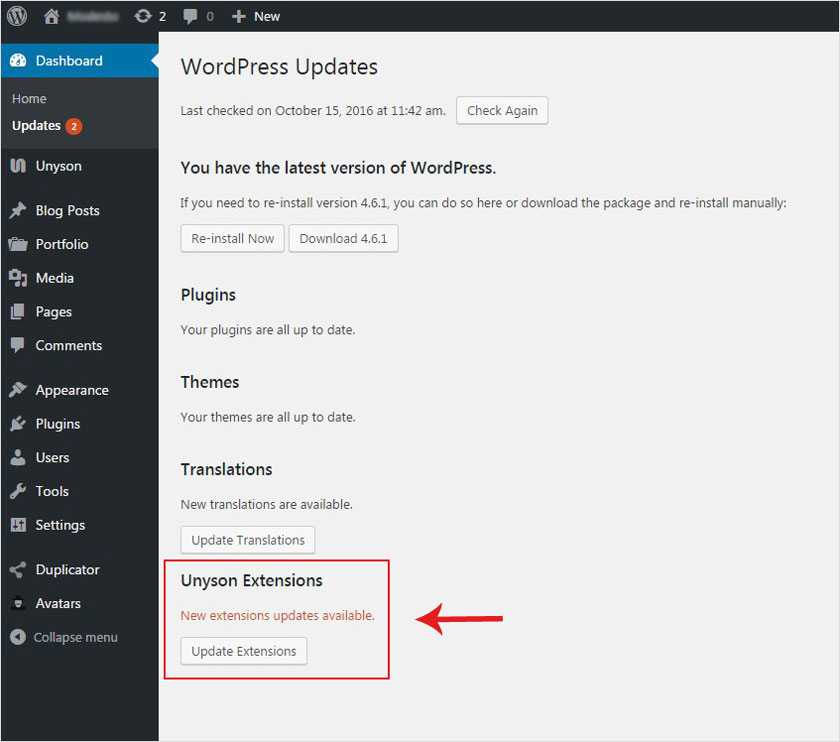
The Dashboard Update Screen provides information on available updates. The number of available updates appears as a notification bubble next to the Updates menu item.
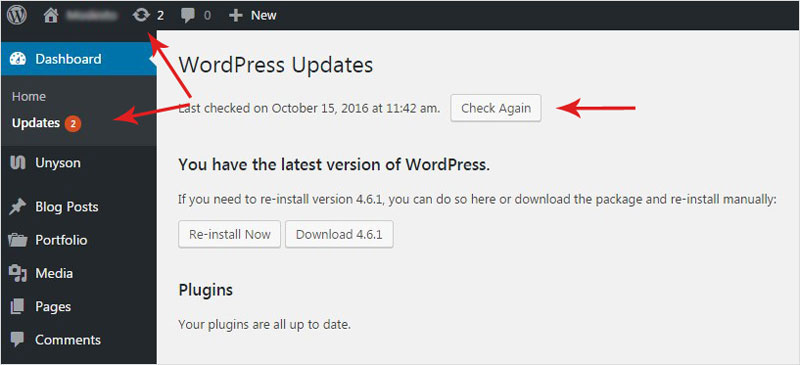
From this page you can update:
The WordPress updates regularly with security patches, make sure you always have the latest version of WordPress installed. You have the option to download the latest version and update your WordPress manually (this is usually done by developers and users that are familiar with WordPress. We advise you to use the regular, automatic install)
We recommend always keeping all your plugins up-to-date but one of the most important plugins that you need to keep updated is Unyson. Your theme needs this plugin in order to work properly so it's a good thing to keep it up to date.
In this section, you'll find the themes that you can update. Select the theme you want to update from the list and click the Update Themes button. We frequently release updates and bug fixes so please keep your theme up to date.
REMINDER: Note that any customization you've made to the theme files will be lost (if they were made in the parent theme folder). Please consider using the Child Theme for modifications. Read more about parent and child themes.
If you see this text: New extensions updates available press the Update Extensions button in order to update your extensions. These are very important as they are the backbone of your theme and it's important to keep them up to date.