
If you want one of your menu items look in the form of a button, you should follow the next steps.
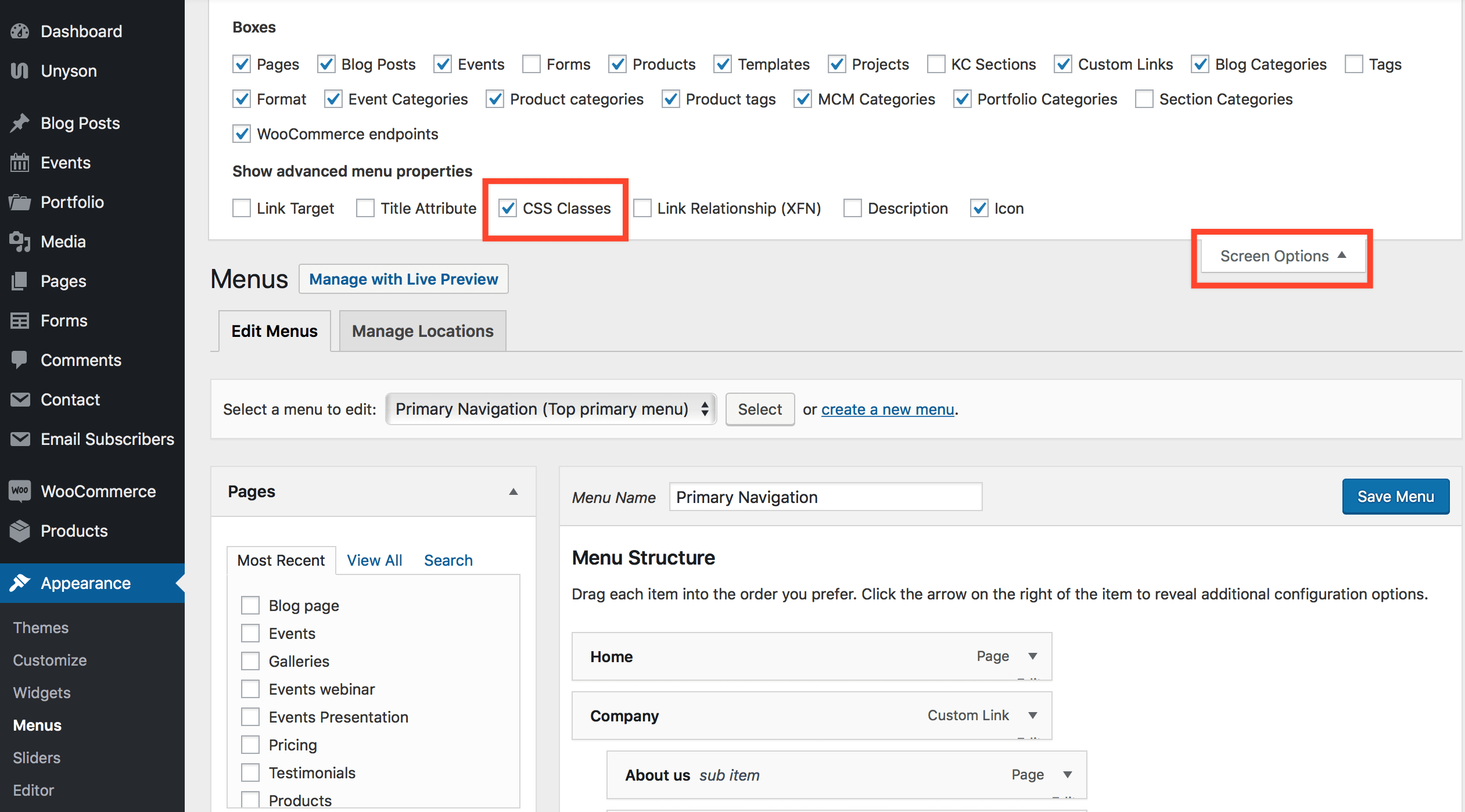
1. Go to Appearance>Menus section. Open Screen options panel on the top of the screen and check "CSS classes" checkbox.
2. Edit menu item, that has to be transformed into a button, and enter 3 classes into "CSS classes" field, that will implement needed transformation.
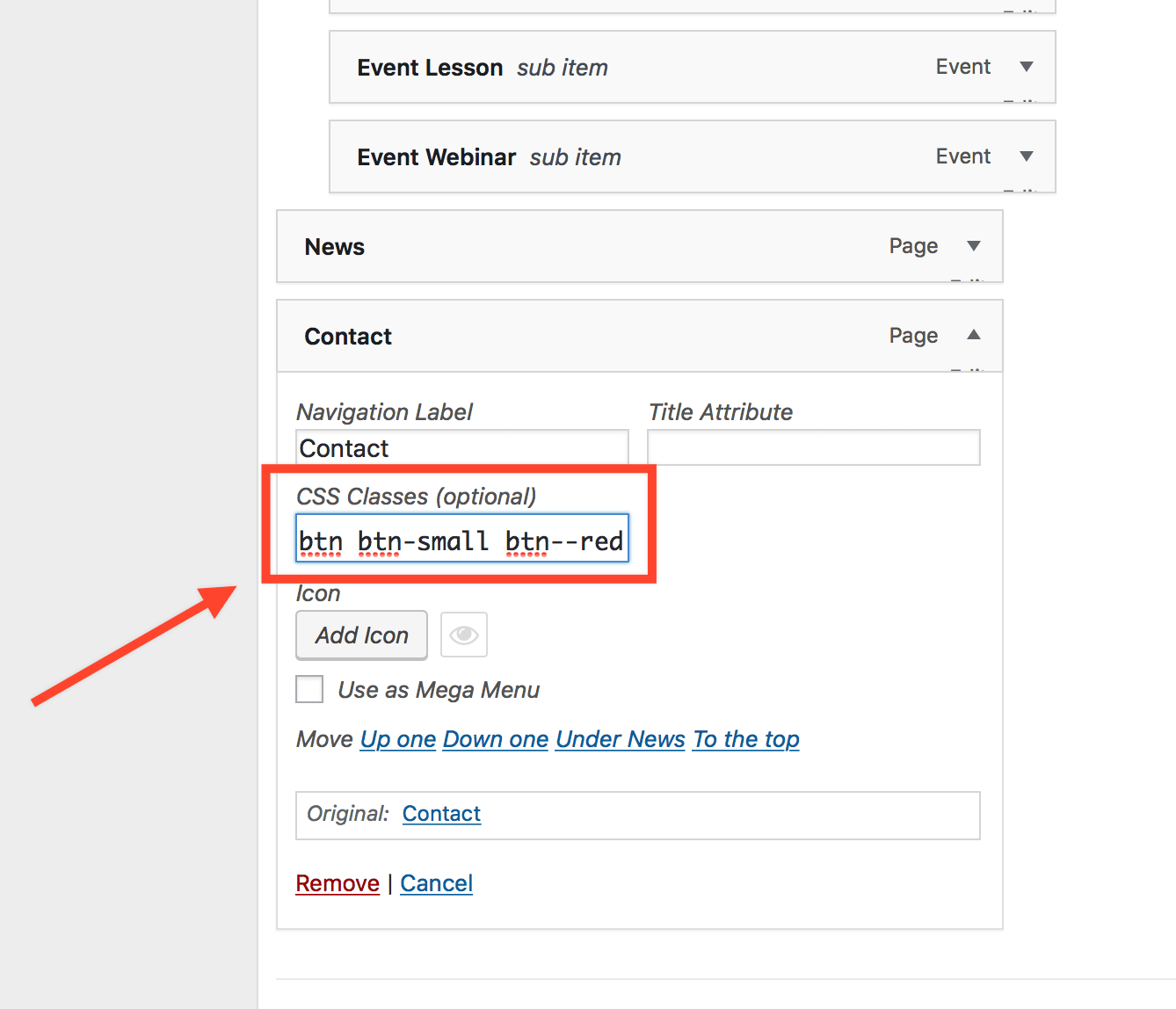
Example: btn btn-small btn--red , where:
btn - is the obligatory class that will transform your menu item into a button
btn-small - specifies size of the button. Instead of it, you can apply classes btn-x-small or btn--large
btn--red - applies the chosen color for the button.
All predefined theme colors are listed below:
btn--dark
btn--blue
btn--purple
btn--breez
btn--dark-gray
btn--brown
btn--rose.btn--violet
btn--olive
btn--light-green
btn--dark-blue
btn--primary
btn--secondary
btn--green
btn--black
btn--orange
btn--orange-light
btn--red
btn--grey
btn--grey-light
btn--yellow
btn--lime
That's all! Save your menu and view changes on page.