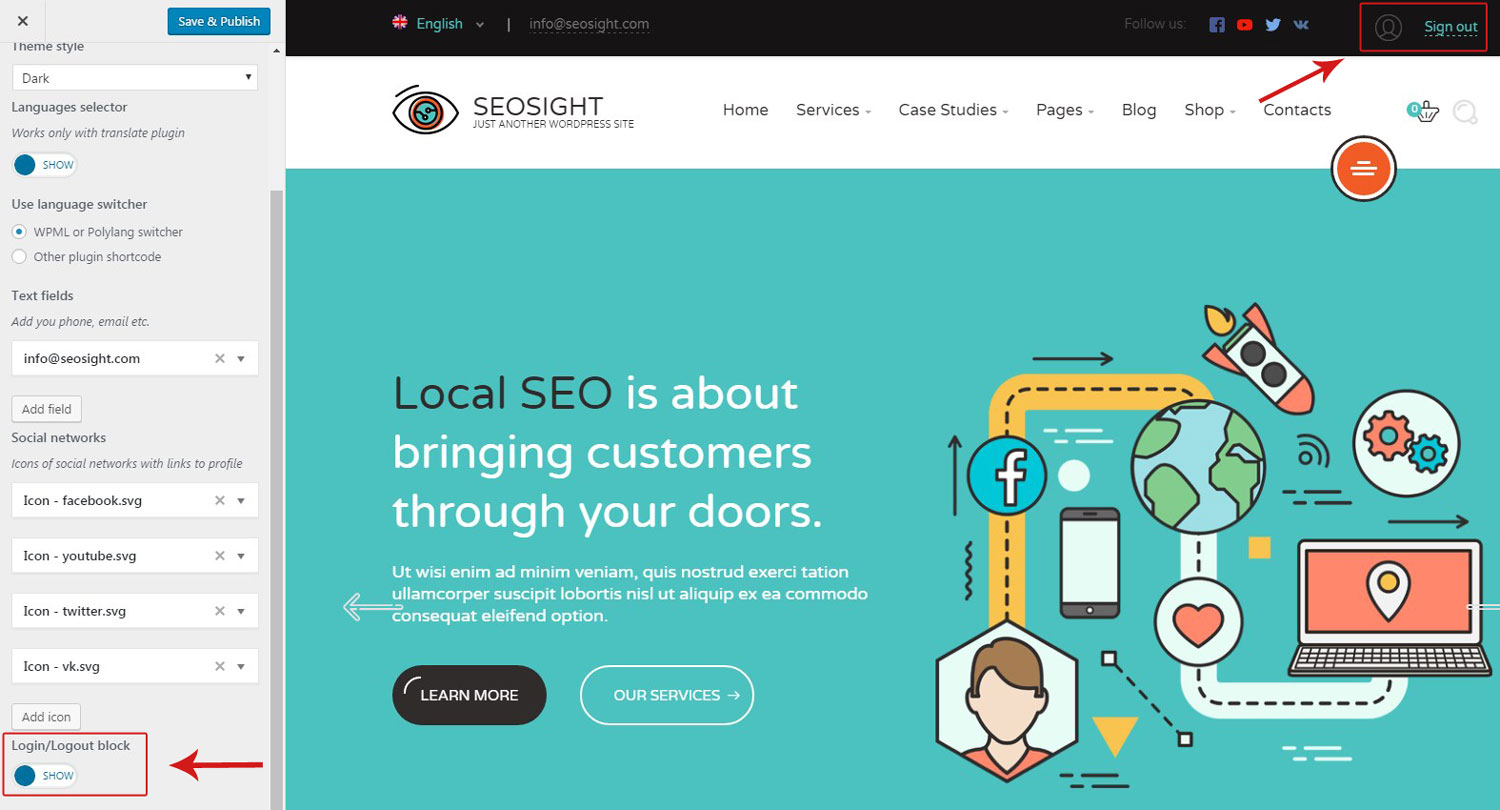
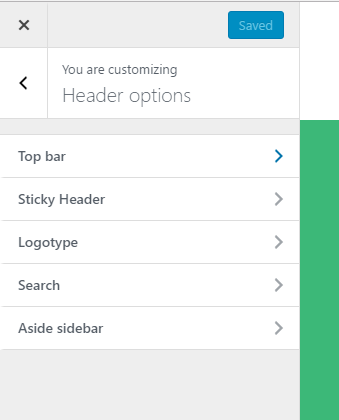
Header options are configured under Customize > Header options tab. There you can adjust settings for the following sections:
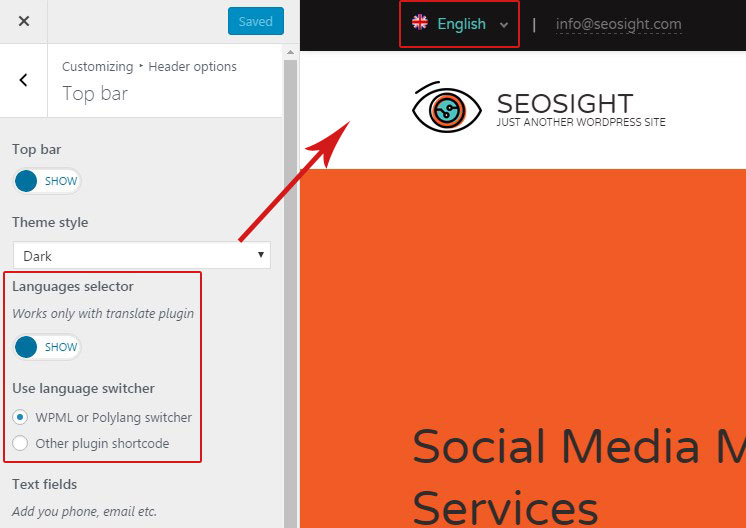
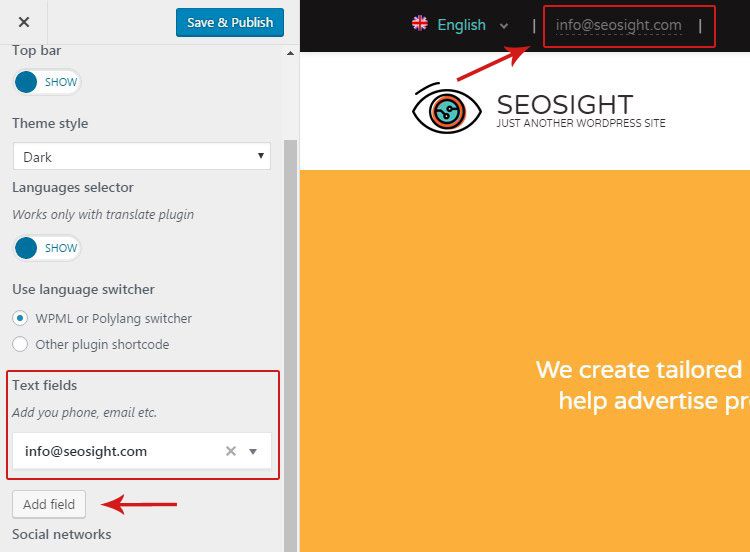
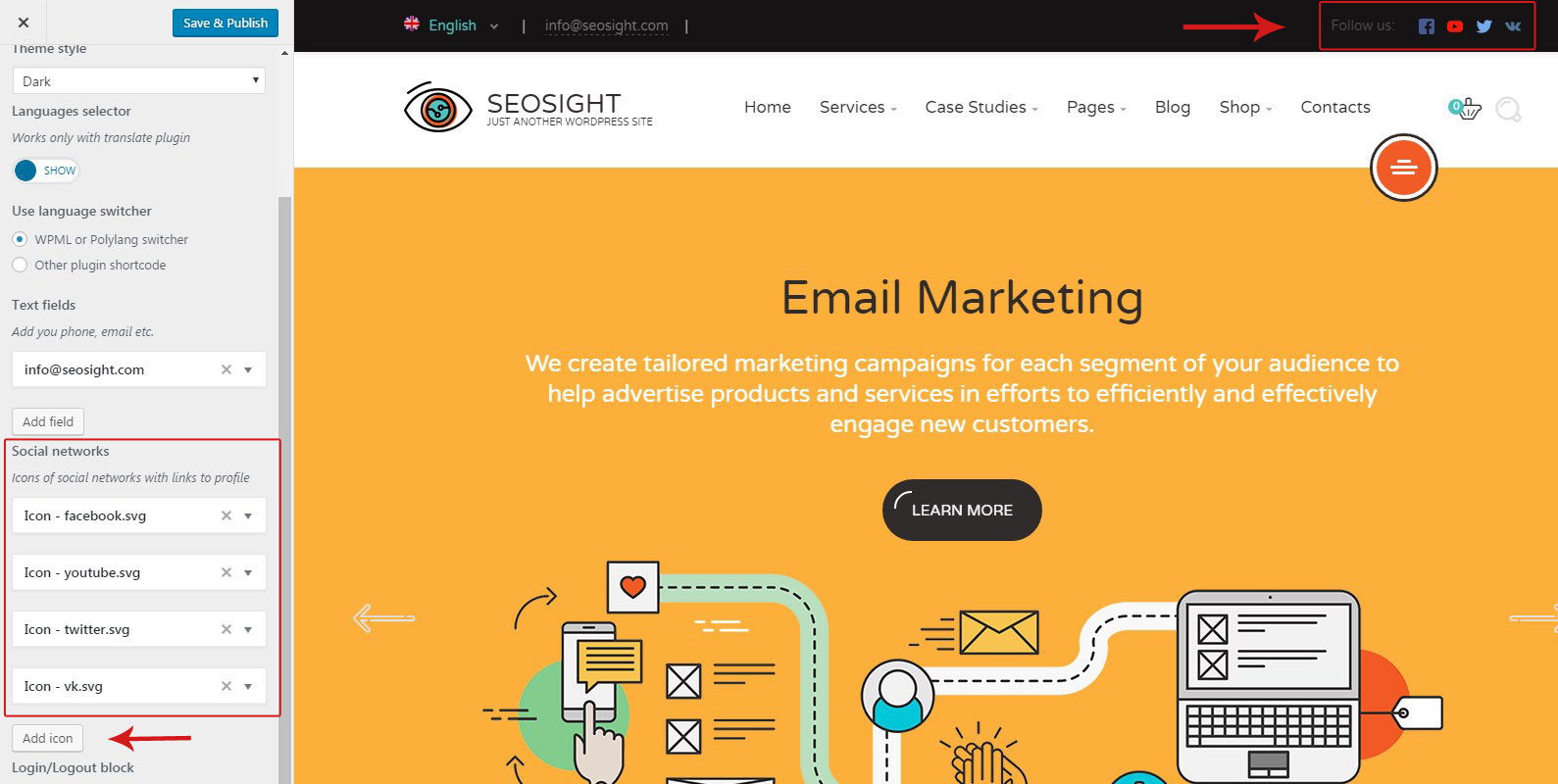
By default top bar is disabled. Go to Customize>Header options>Top bar and activate it by switching the toggle to 'Show'. Below will appear all options available for the top bar.
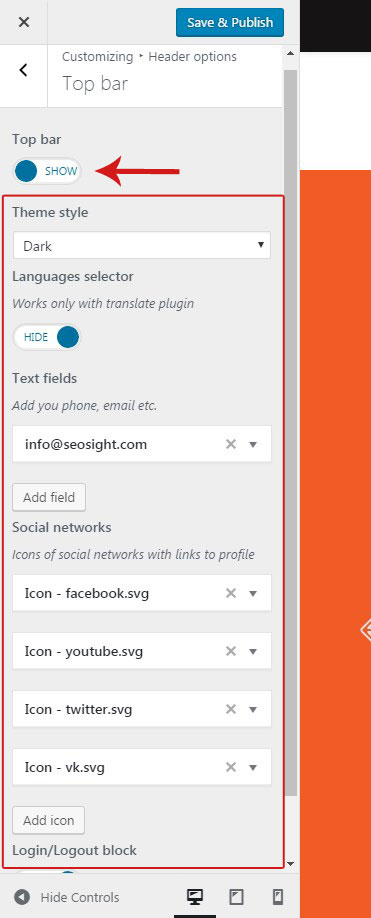
Top bar options let you adjust the following parameters:
You can show/hide sticky header on scroll:
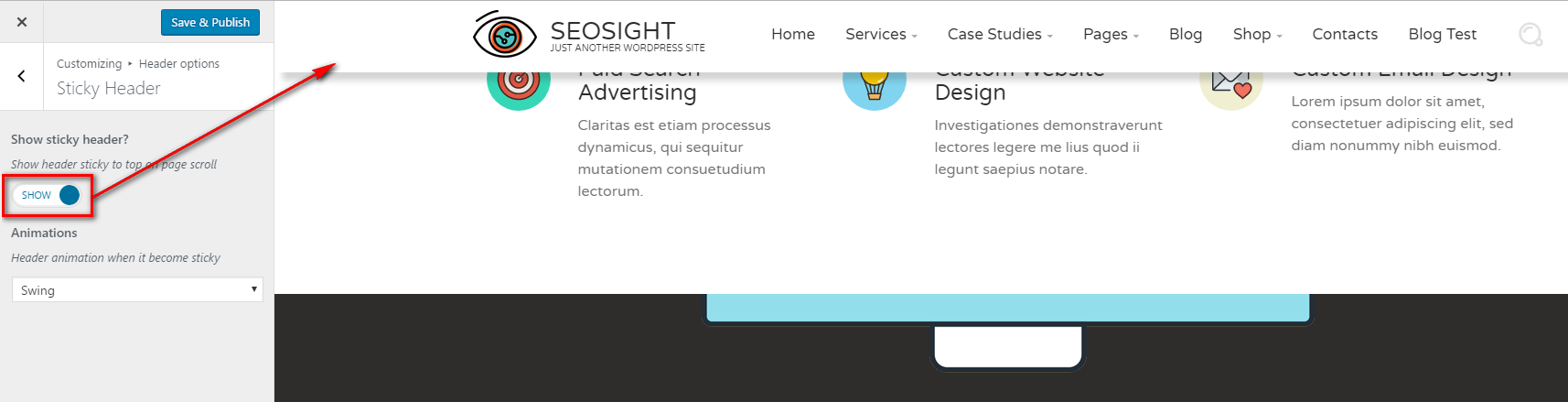
When sticky header is activated you can also set the animation when it appears/hides on a scroll or turn it off:
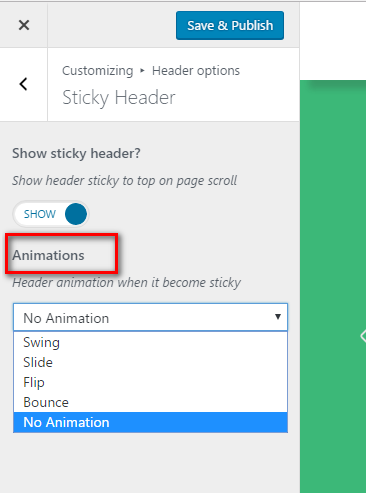
PS: The sticky header option is available from the v.2.1.
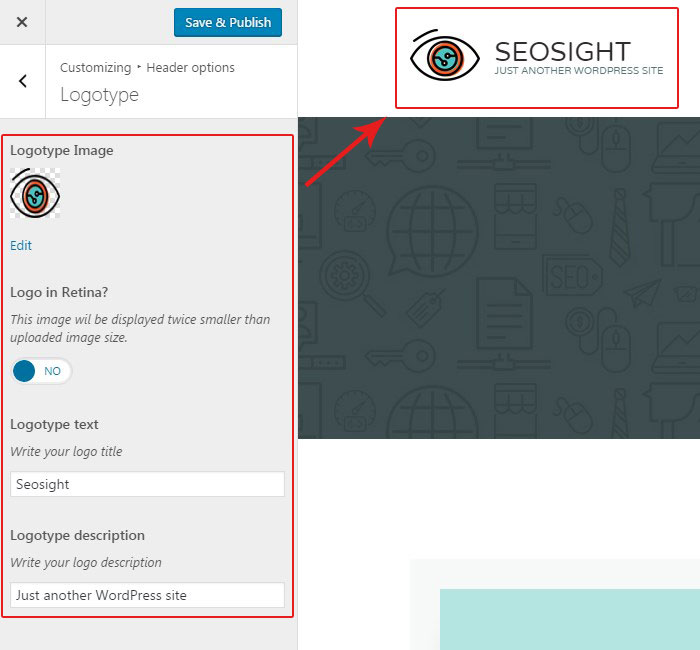
Logotype options are as follows:
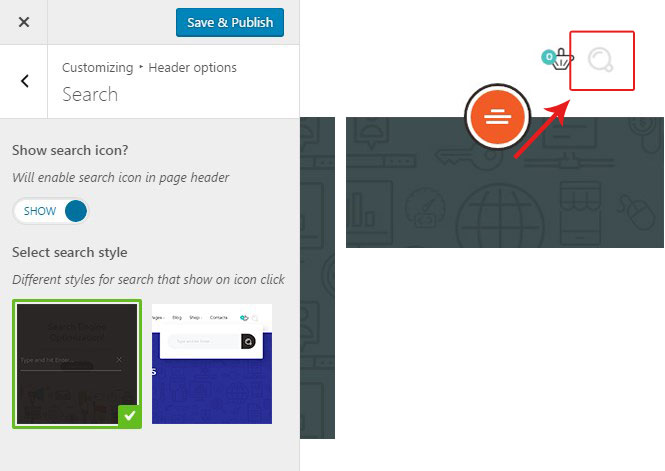
Search options are as follows:
The aside panel is a hidden menu that is opened by clicking on the round red icon on the right side under the top menu.
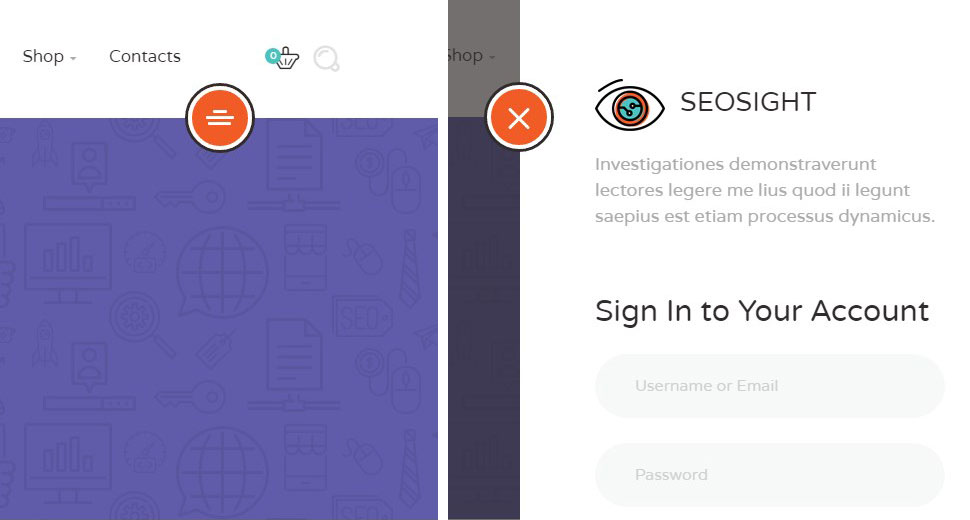
The aside panel can be activated in Customize > Header options > Aside sidebar.
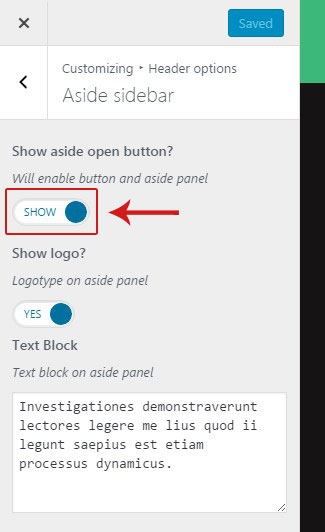
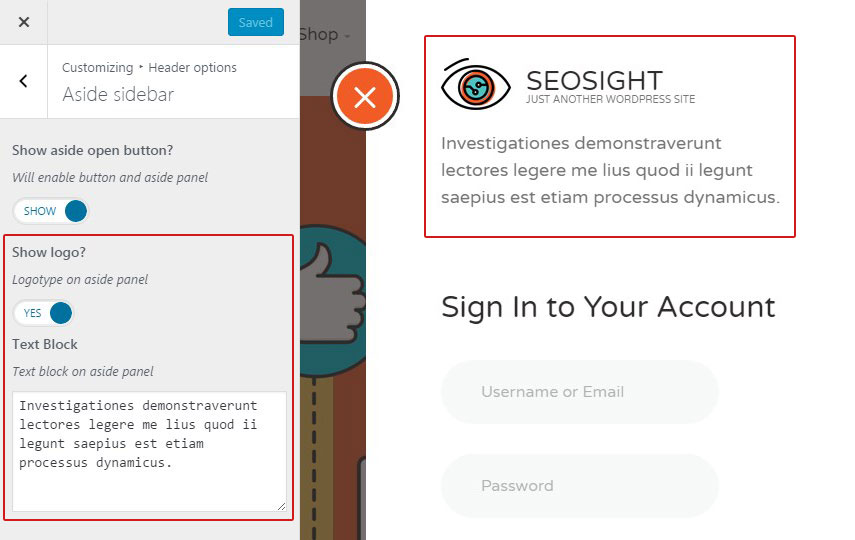
You can also activate the logo and add some text that will be displayed on the top of the aside panel.
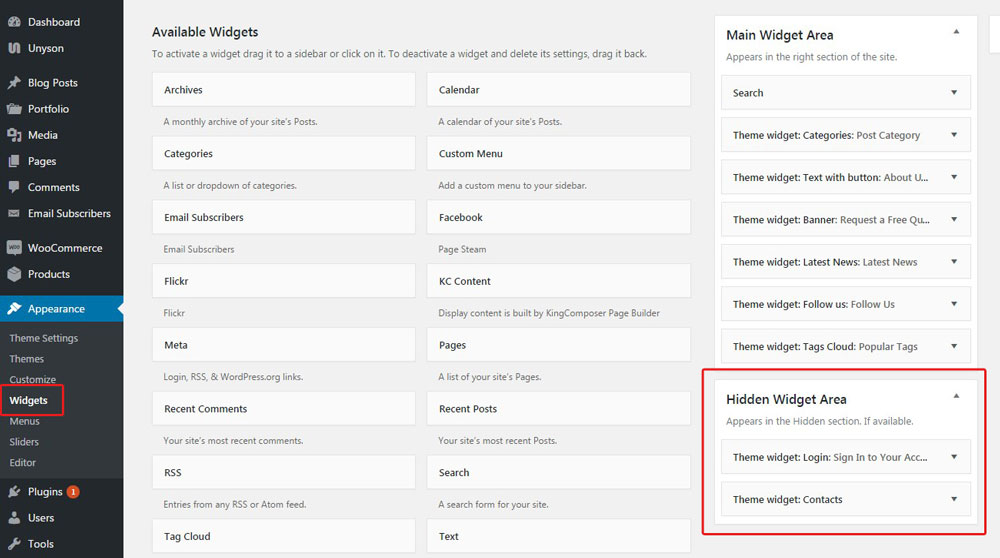
In order to add some widgets to the aside panel, go to Appearance>Widgets section and add any widgets you like into Hidden Widgets Area with drag-and-drop function.