Menu setup
Menu can be created in two ways:
- Via Customize> 'Menus' tab. This is a simplified menu editor. You can create menus, add menu and submenu items, reorder them, and assign menu to the primary menu location.
- Via Appearance>Menus section. This is an extended menu editor. Beside the above described possibilities, you can add icons to your menu items and create mega menus.
Simplified menu editor
To create a menu follow the next steps:
- Go to Customize> 'Menus' tab.
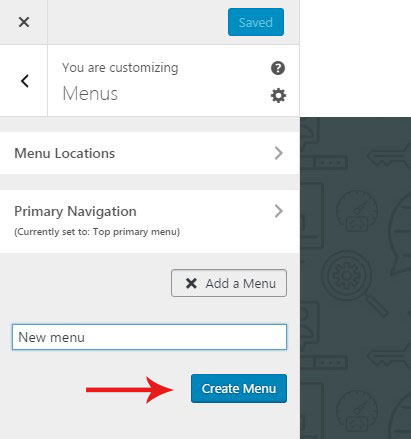
- Click on the 'Add a Menu' button, type name of your menu and hit the 'Create Menu' button.
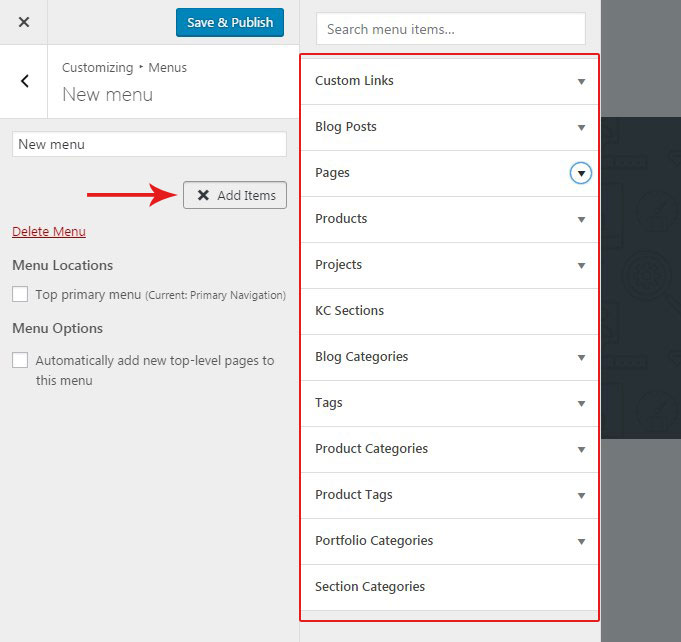
- Begin adding menu items by clicking on the 'Add items' button.
- Choose items among available page types from the popped out right panel.
- Once the items are added, you can reorder them and create submenus with simple drag-ad-drop function.
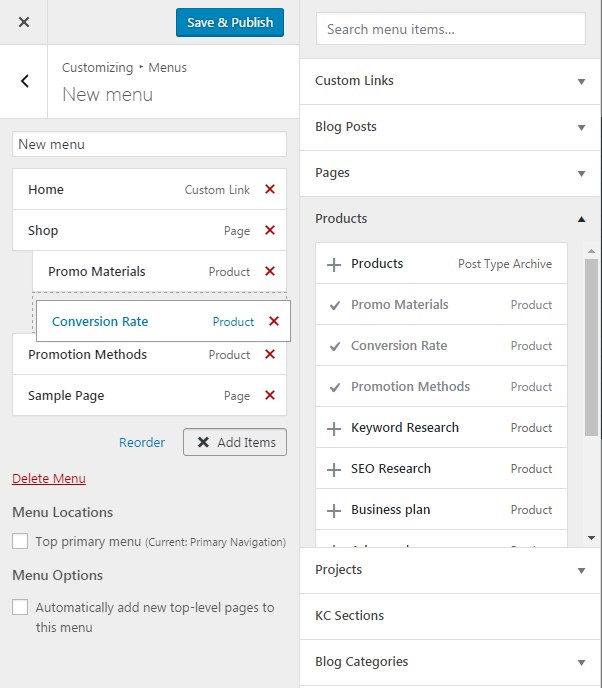
- When your menu is ready, hit the 'Save & Publish' button.
Extended menu editor
In order to create menu via the extended editor, follow the next steps:
- Go to Appearance>Menus section in your backend editor.
- Click the create a new menu link at the top of the page.
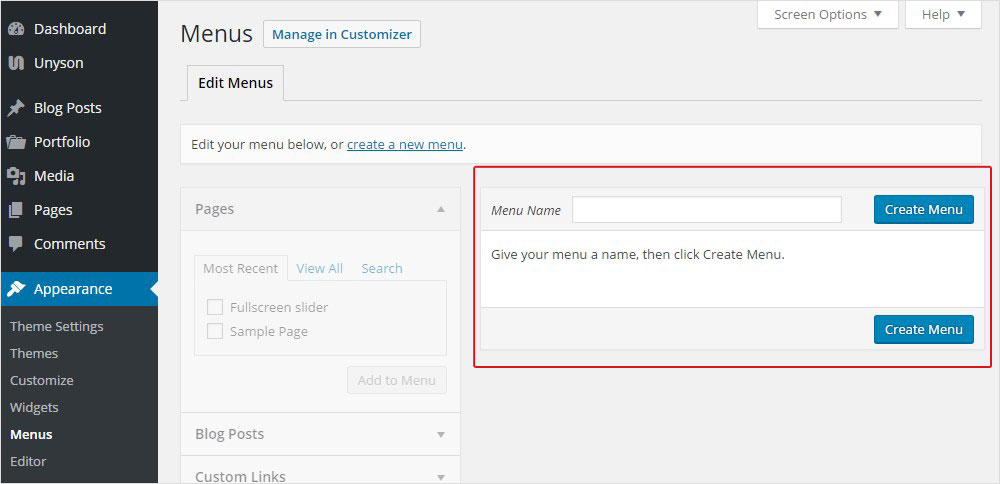
- Enter a name for your new menu in the Menu Name box.
- Click the Create Menu button.
Once a menu is created, you can add items into it. On the left column you can find different custom links, pages or categories that can be used as menu items.
- Select the Pages (or another) tab.
- Press the View All link to bring up the pages published on your website.
- Select the pages you want to add by selecting the checkbox next to each page title.
- Click the Add to Menu button to add your selection(s) to the menu that you've just created.
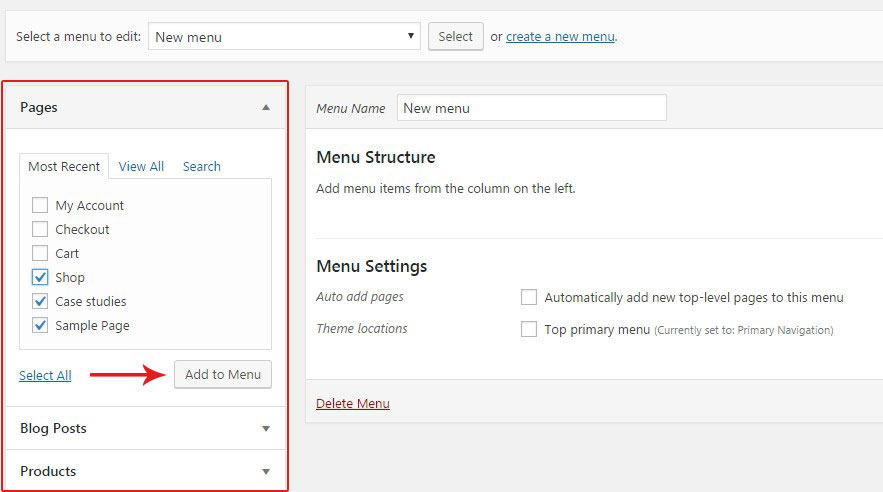
- Click the Save Menu button on the right hand side once you have added all the menu items you want.
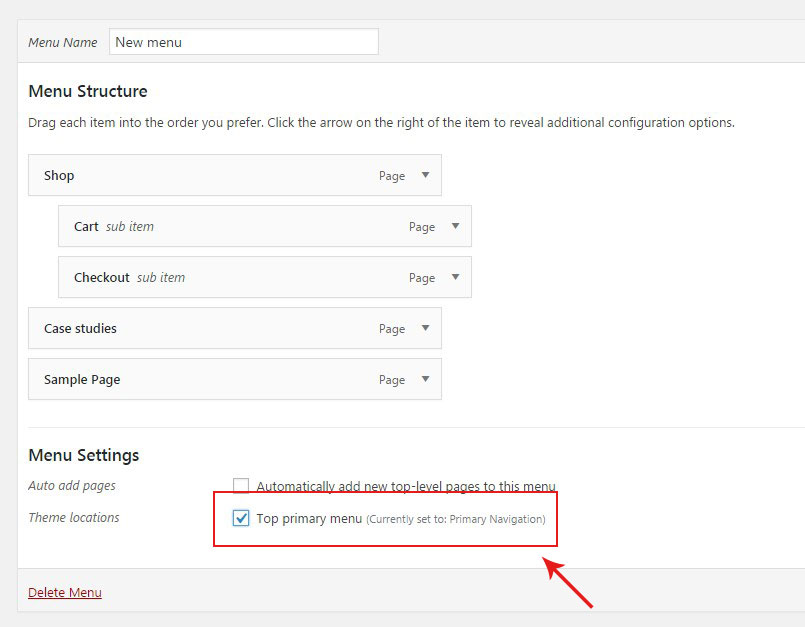
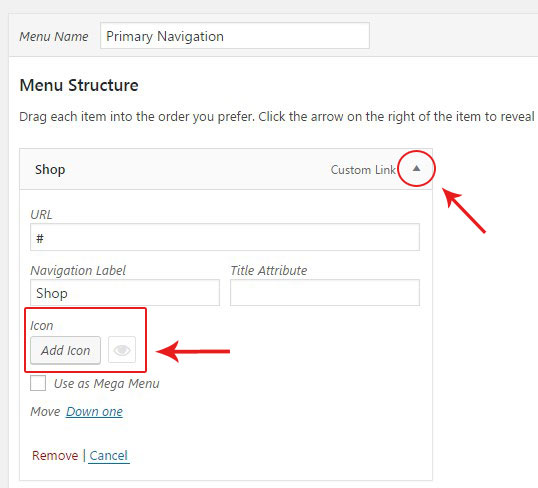
If you want to add icons to your menu, click on the triangle sybmol in front of the menu item name to open its settings and by clicking 'Add Icon' button select an icon from the list.
If you need to add submenu items, move them under the parent menu item and shift a little to the right side with drag-and-drop function. Click the Save Menu button on the right hand side.
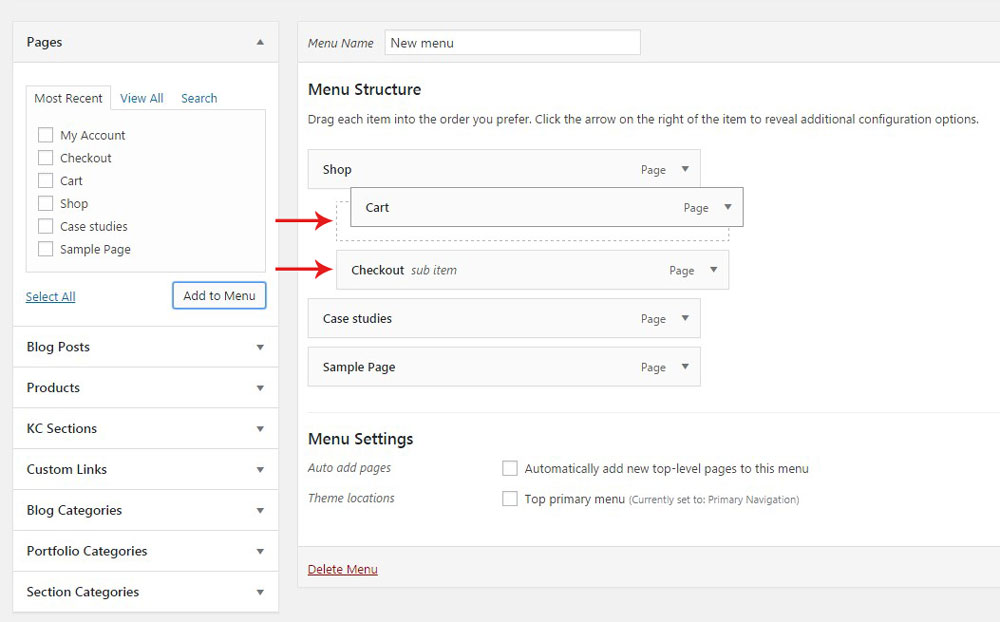
Once your menu is ready, assign it to the main menu location by checking 'Top primary menu' checkbox under the 'Menu Settings' title. Click the Save Menu button on the right hand side.