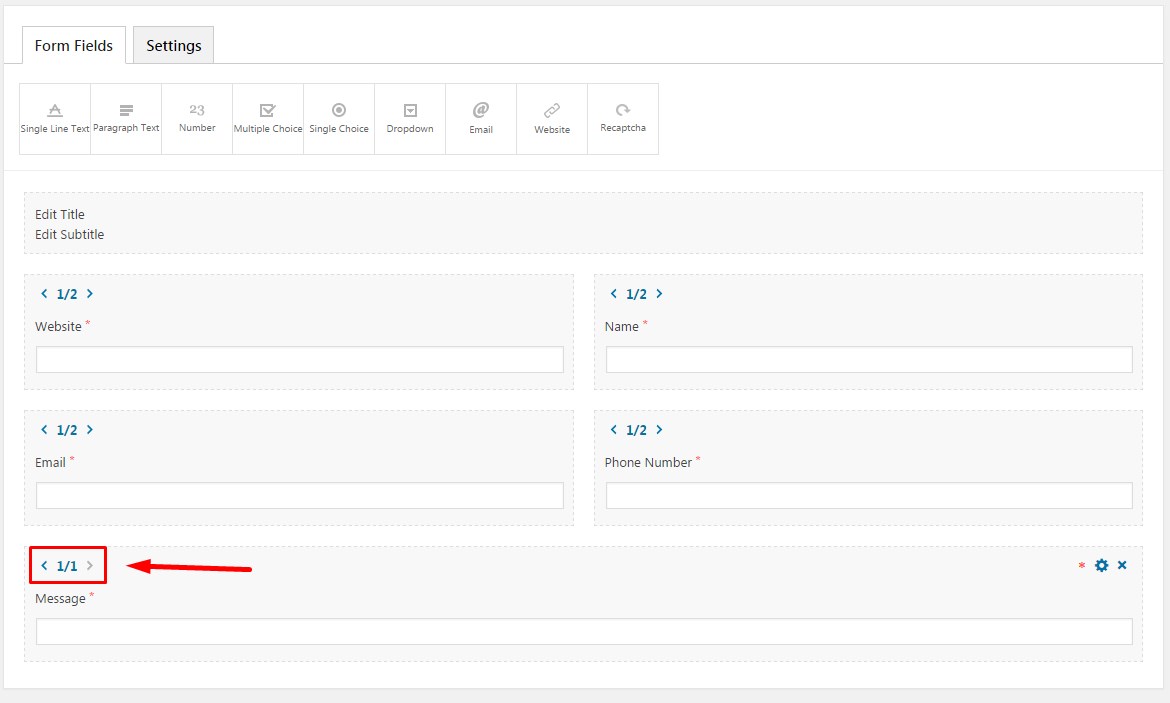
 You can create almost any form layout you need. Control fields width with the arrows on the top left corner of the field.
Starting with version 2.0. Seosight theme comes with integrated contact form builder. All forms are created and stored in Forms section of your admin dashboard.
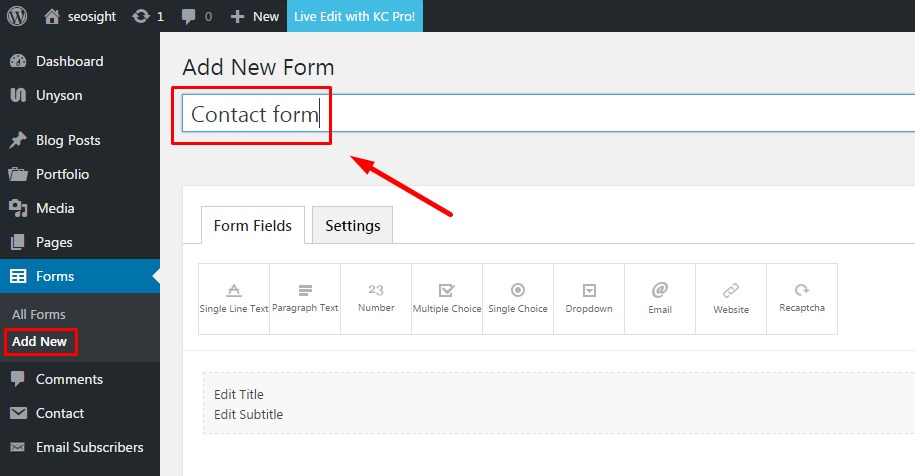
To create a new form go to Forms>Add new and type in the title of your form. Title is displayed only on the backend and is needed only for easier navigation through your forms.
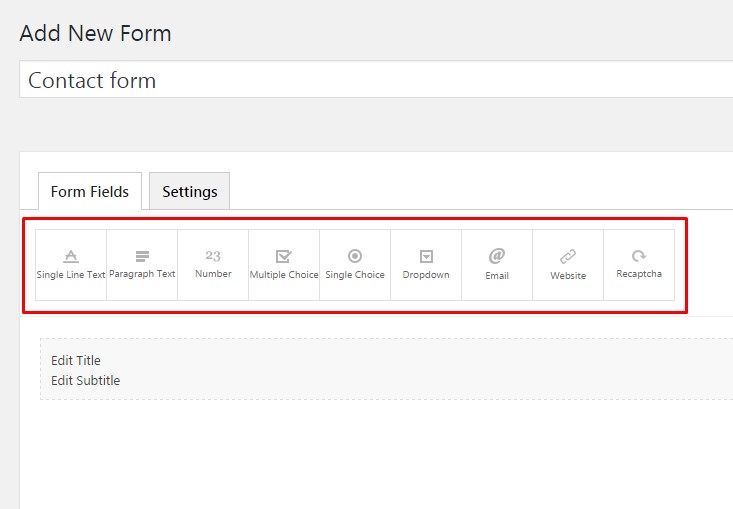
Begin adding fields by using elements represented under Form fields tab.
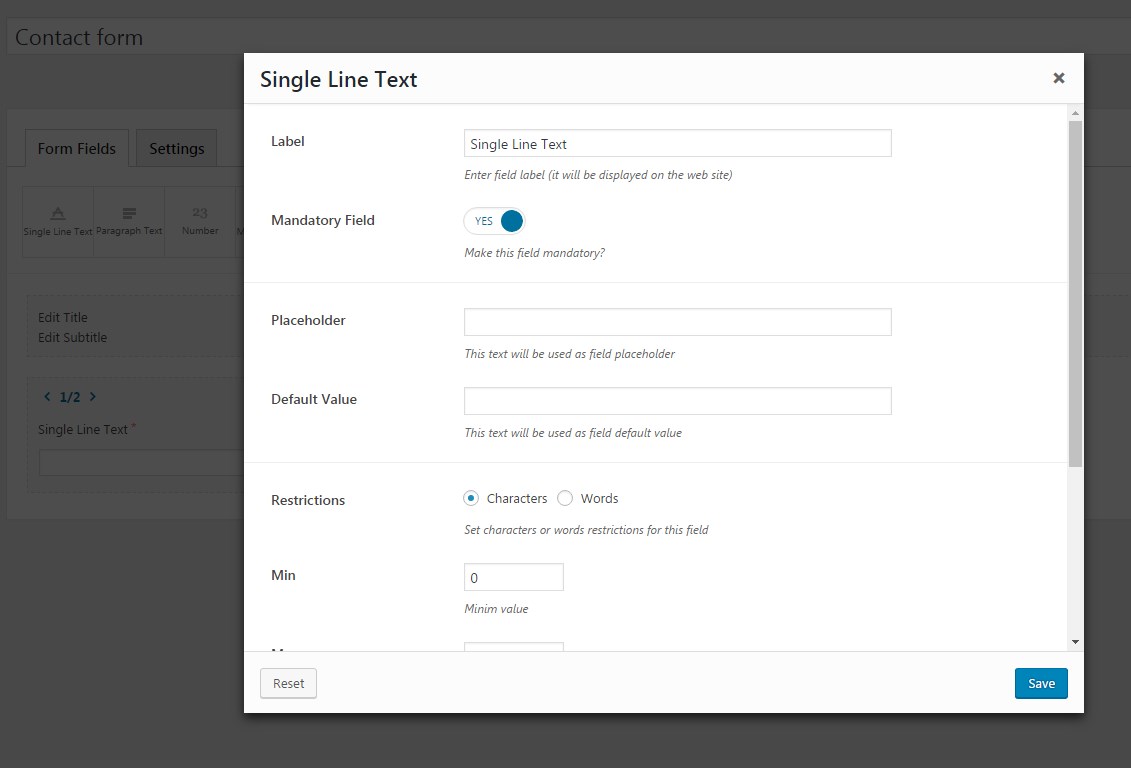
Once you have added a field, click on it one time to open settings window. Each field type has its own settings. Configure each field and press "Save" button.
You can create almost any form layout you need. Control fields width with the arrows on the top left corner of the field.
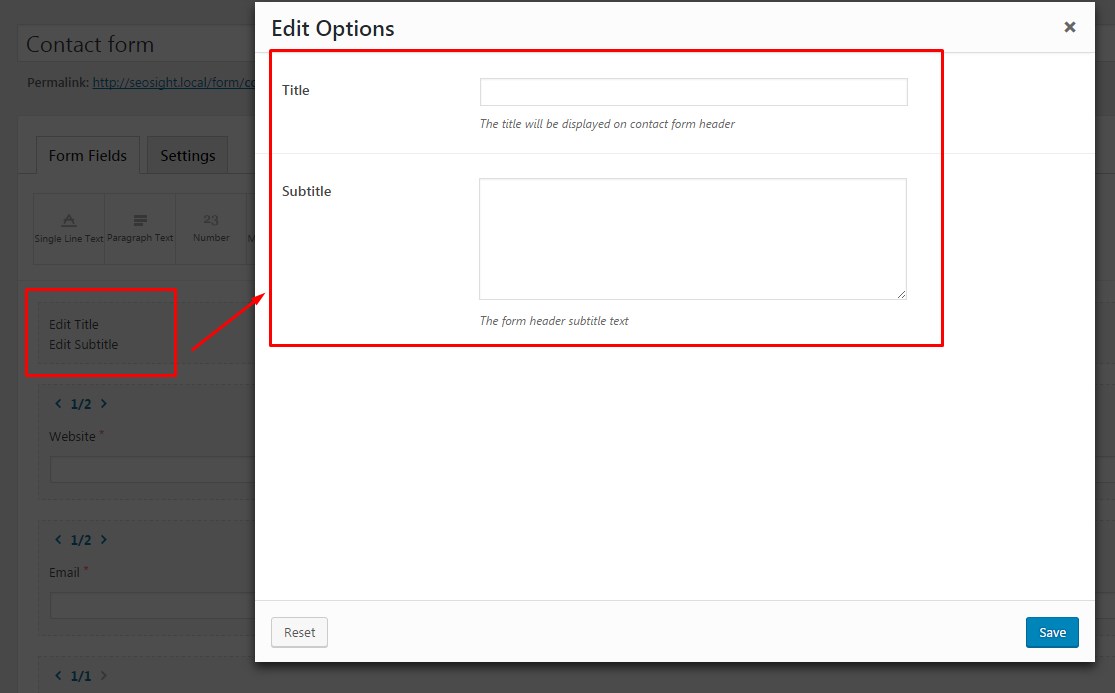
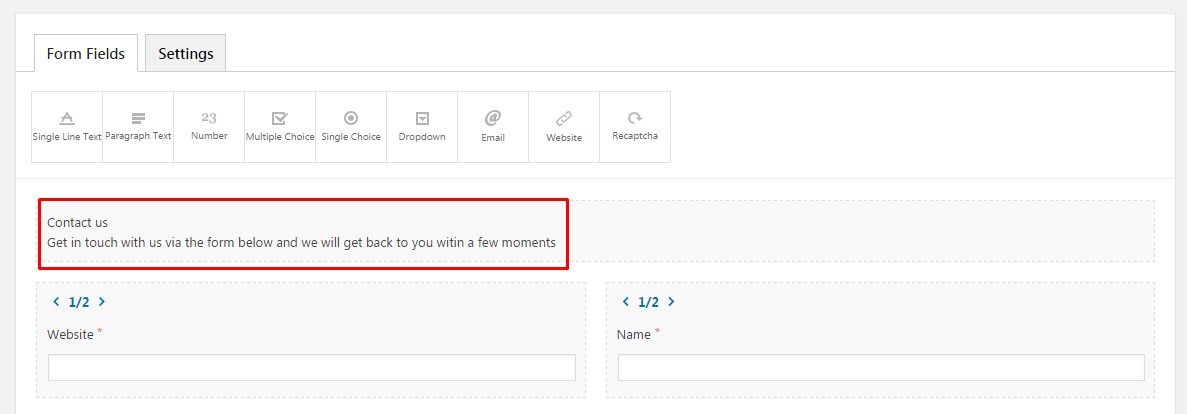
On the top of the form, you can enter title and subtitle. They will be displayed on the frontend before the form itself.
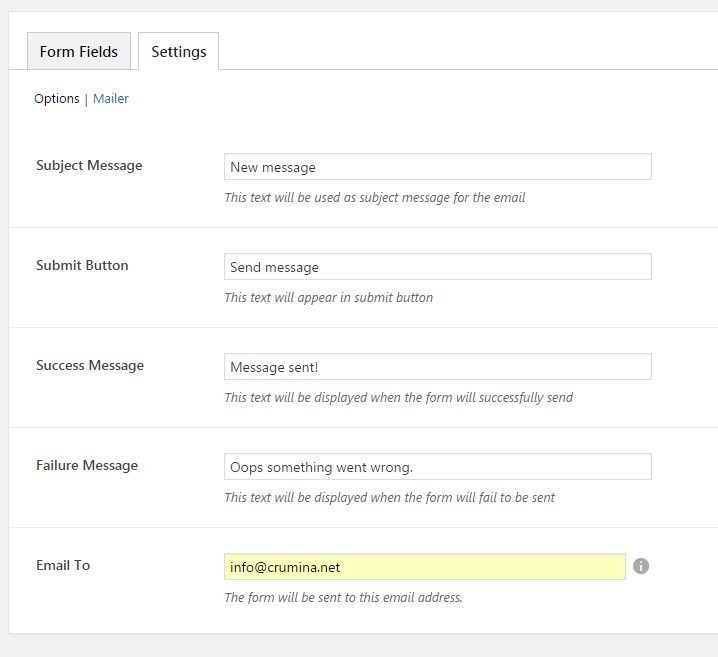
As soon as the form is ready, switch to the Settings tab to set up email and form messages.
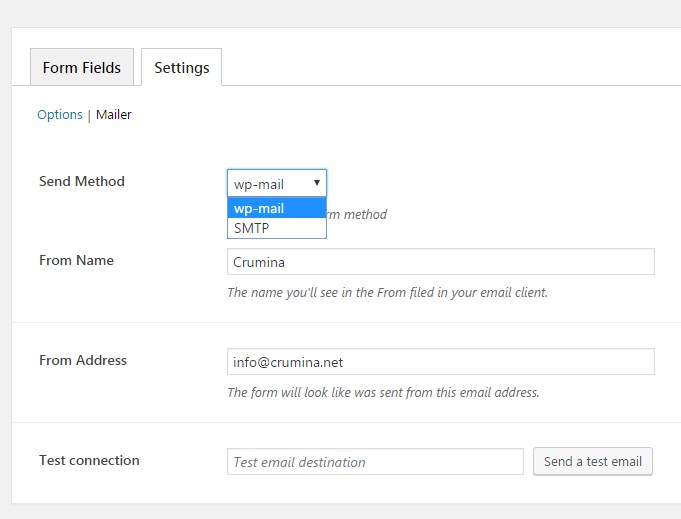
 Under Settings>Mailer you can set up send method and test connection by sending a test message. You can also fill in the "From Name" and "From Address" fields, that will be displayed in all received emails.
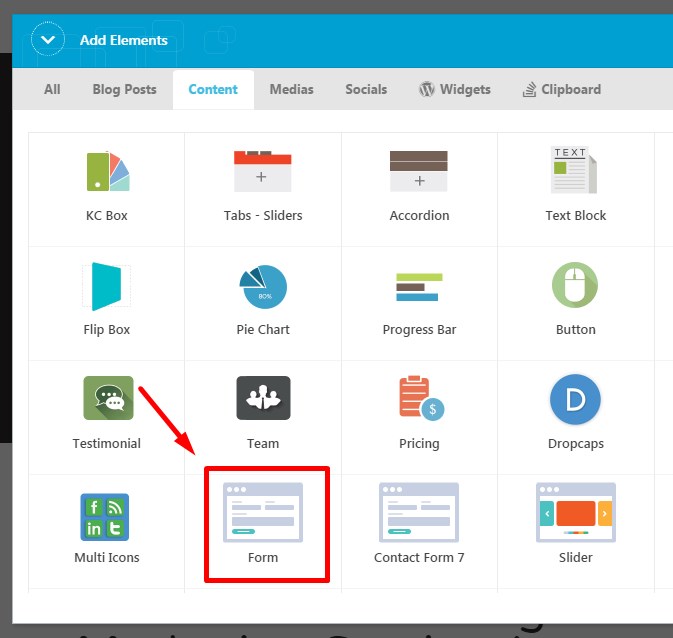
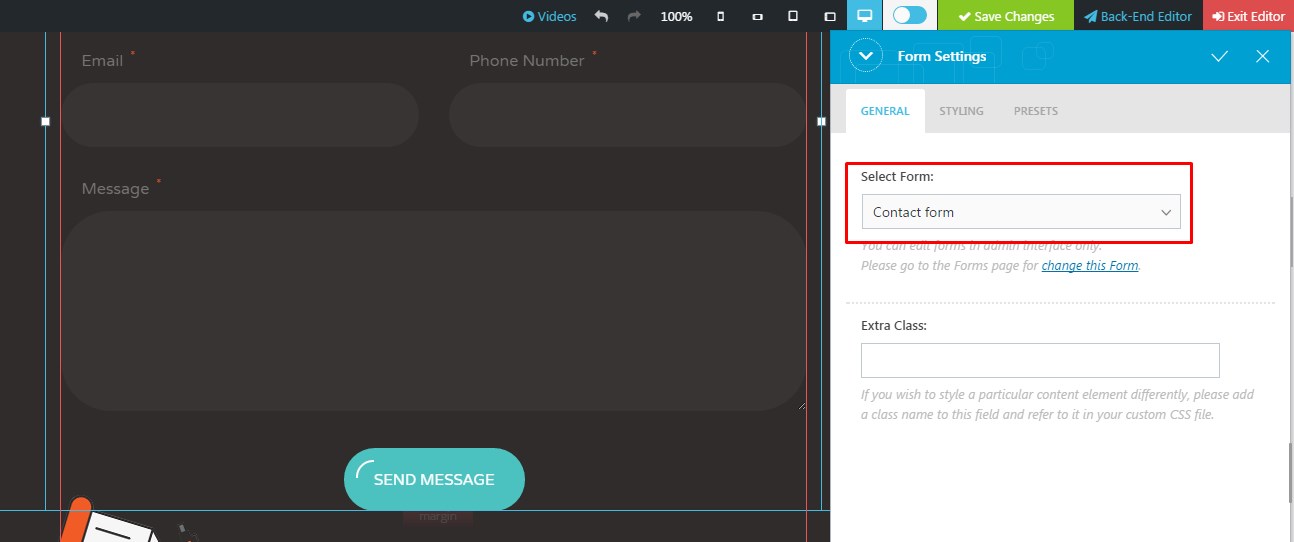
You can add contact forms on pages with Form module of King Composer editor. You can use Backend as well as Frontend editor for this.
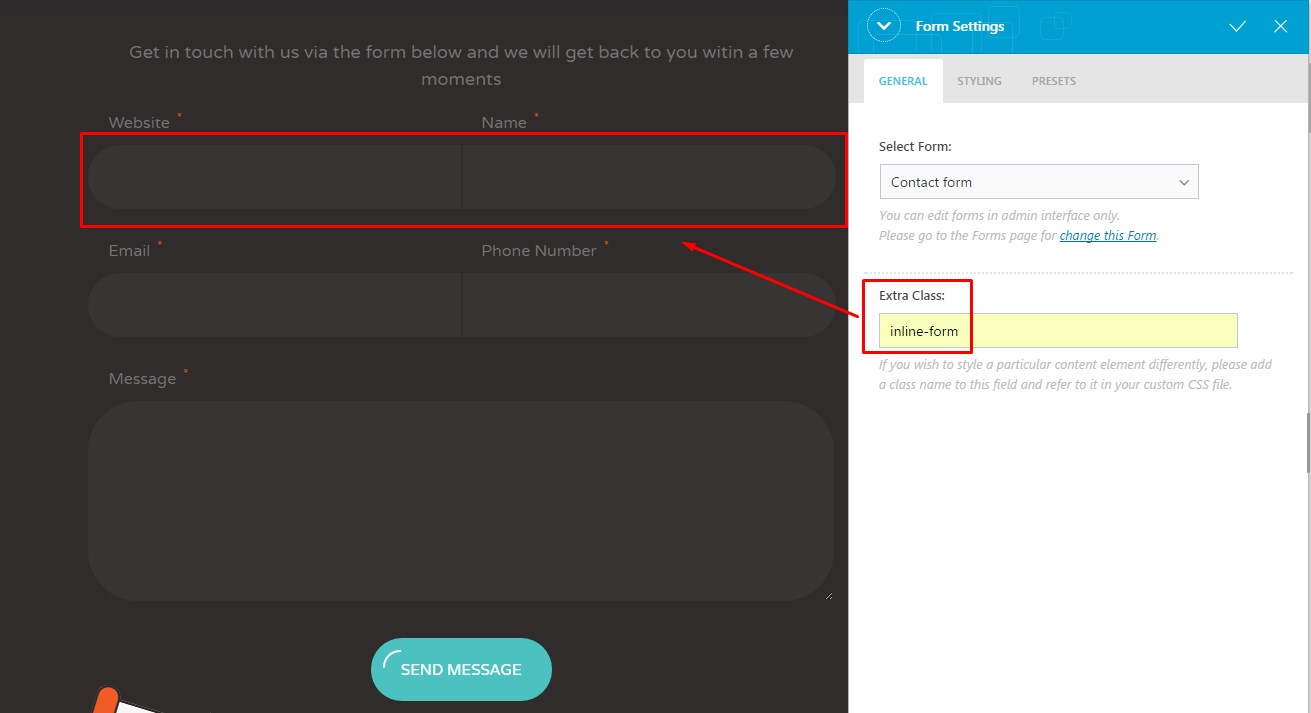
NOTE: If you want your form fields to have square border on one side, enter inline-form class into 'Extra Class' field.
Switch to Styling tab to configure styling options. There you can set color scheme for the form (White or Dark) and color of the submit button:
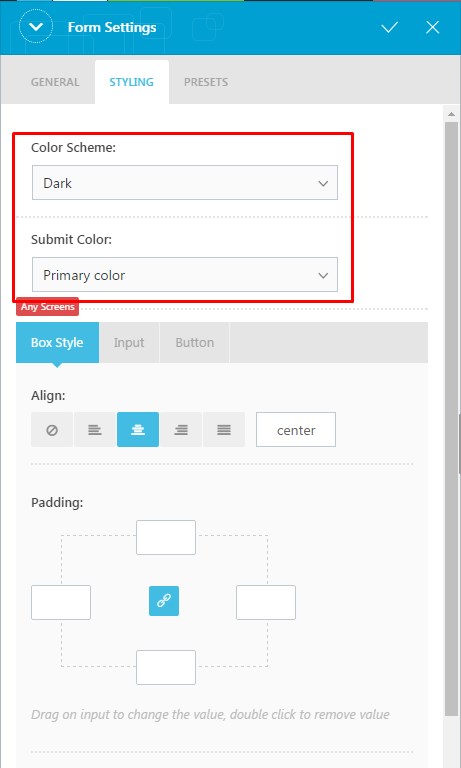
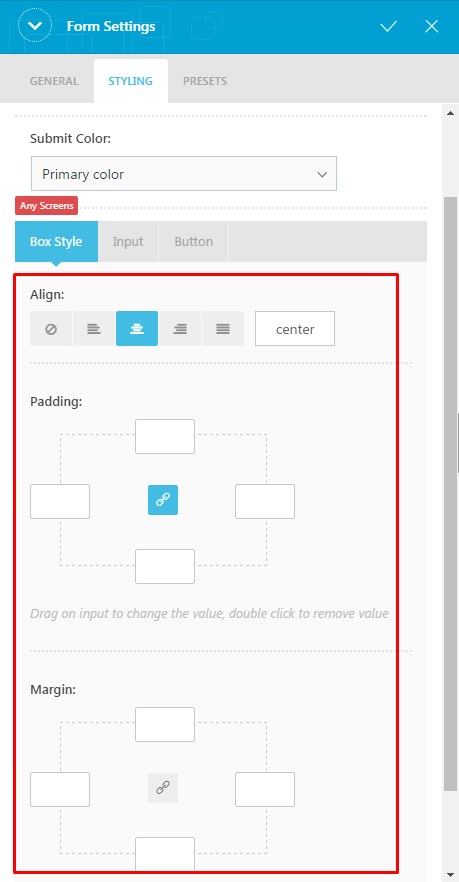
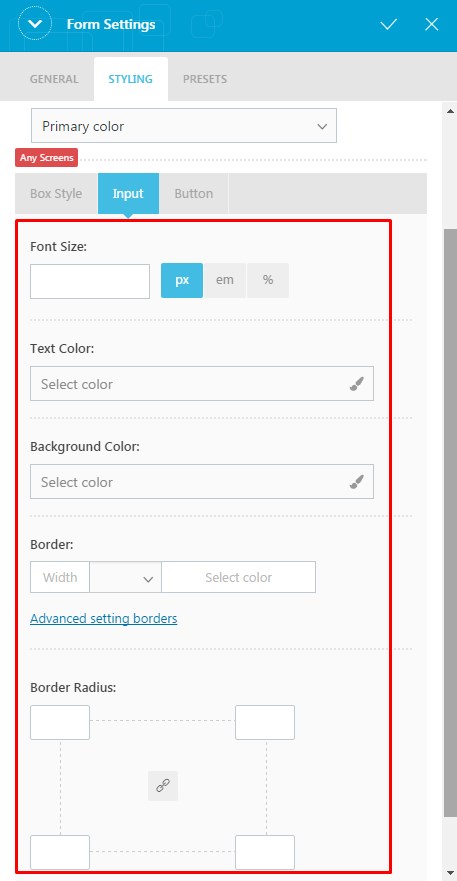
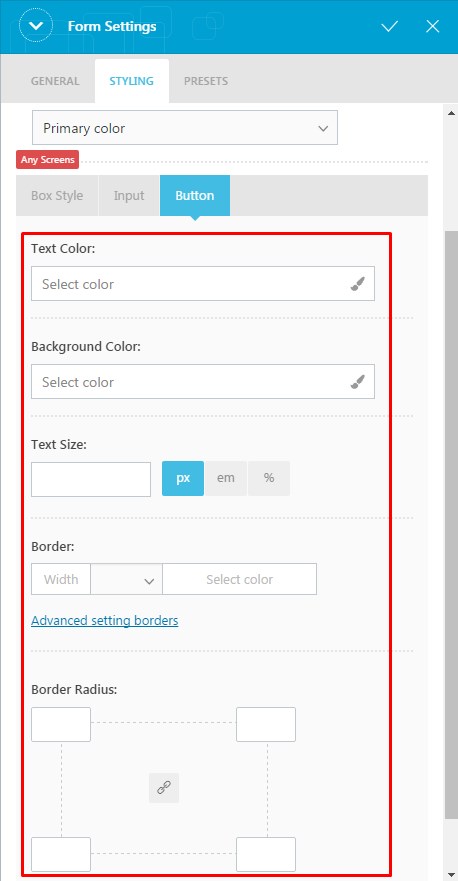
There are further options that let you choose custom settings for each element in the form. They are:
Box style
When you are done, save changes.