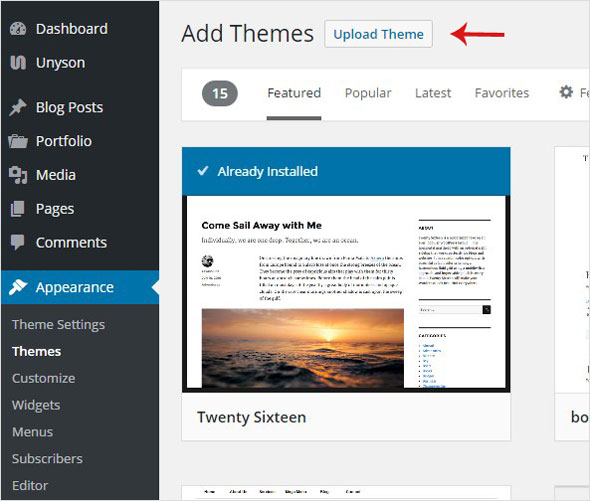
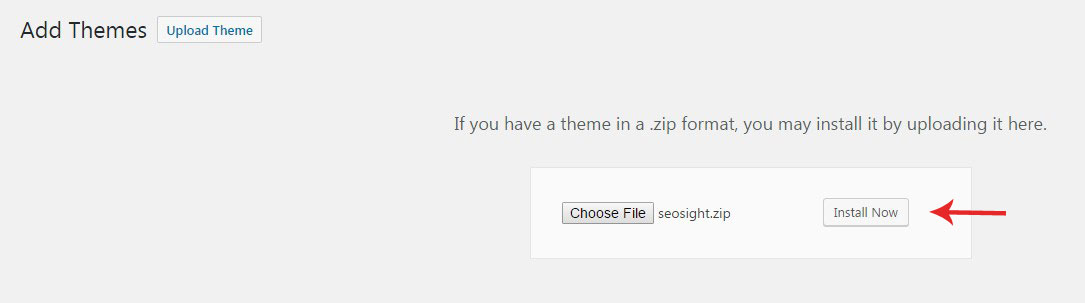
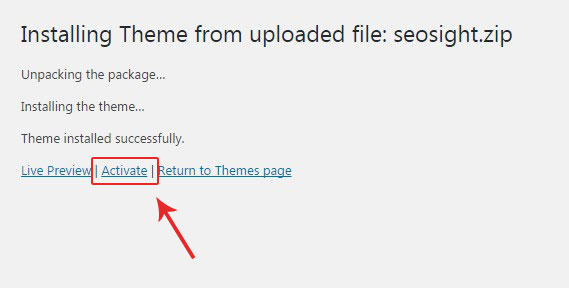
Once you purchased the theme, begin installation process:
Upon theme installation and activation you are redirected to the Auto Setup page. You are offered three options:

It is recommended to choose between 'Plugins & Demo Content' or 'Plugins Only' options.
Let's review the complete demo setup. Click on the 'Plugins & Demo Content' button below it and wait a few moments until the installation process is finished.

Once the installation process is finished, you're automatically redirected to the 'Demo Content Install' section. Click on the 'Install' button and wait a few moments.

By the end of the demo import process, you're automatically redirected to the home page.
Look at the video tutorial!