
Once registered and logged in, a user can start customizing his profile.
To open the user dashboard, hover over the profile picture at the top right corner of the top bar and click on any of the suggested links. You will be redirected to the user dashboard.
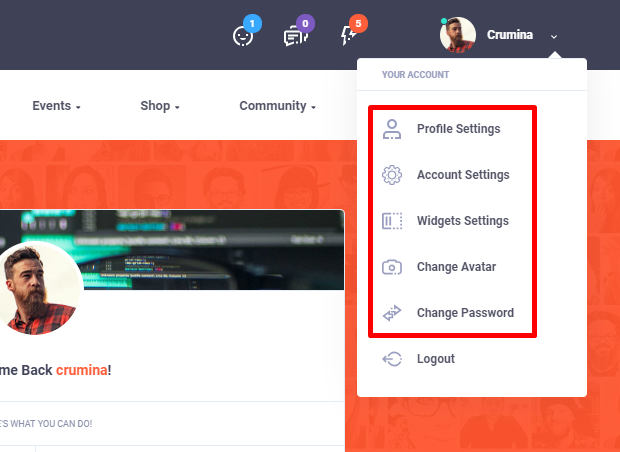
Or if you stay on the homepage, click on the "Settings" link in the Welcome box.

In the user dashboard, a user can customize:

Profile Settings tab shows the fields from Users > Profile fields settings. These fields can be edited according to your needs.
Besides, the fields can be divided into groups, which will be shown as separate subtabs on a profile page.

In our demo, the Profile Settings tab consists of 4 subtabs: Profile info, Hobbies and Interests, Education and Employment, and Contact Info. However, these fields can be customized according to your needs.
For each profile field, except for the name, a user can set up the visibility of every field.
Please, pay attention that only users by themselves can select fields privacy. There are the following options:


Under Email & Password settings users can change their account email and password.

Under Notifications Settings users can adjust the following notifications:
Under Data export users can request an export of their personal data, containing the following items if applicable:
Under Account Privacy users are available to make their account private.

Users can add widgets to their profile under this section and adjust it. Available widgets:
If you want to hide Widget Settings, please, refer to the Youzify snippet for this.
Link to the full Youzify documentation.