
All our themes include POT file that lets you translate the theme to any language, moreover, our themes are compatible with WPML and Polylang plugins, allow you to create the multilanguage site and expand the reach and approach a much wider audience.
WPML it's a paid extension when Polylang plugin is free for use. Since both tools are similar to their functionalities, we will talk about Polylang in this tutorial.
First of all, we need to install and activate the plugin. Once it installed and activated, then go the plugin`s settings, go to the Languages tab, select the "Choose a language" option above and pick the language you want to add to your website.
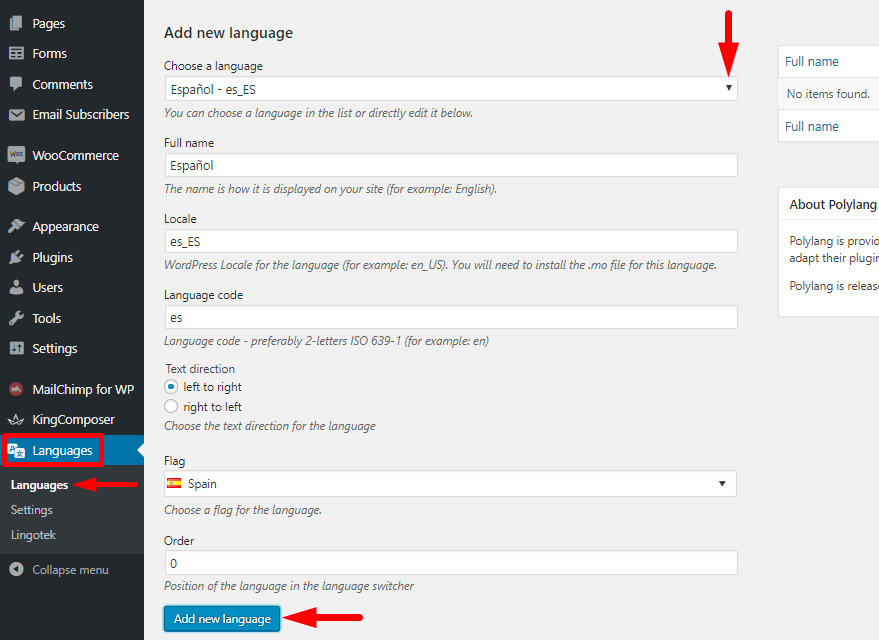
Your choice will appear under your default language on the table to the right of the screen, you can set your default language using star icon:

After you finish adding the languages, Go to Languages > String Translations. There you can translate your strings in the Translations column.
If the theme strings are not appearing in the "String" column, you need to install "Polylang theme strings" plugin - its extension, that gives additional features to the plugin Polylang. It automatically scans all templates files and scripts of the active WP theme for available strings that can be translated.

After all, strings translated, click the "Save changes" button.
Polylang creates new theme locations for every menu. You need to create a separate menu for every language and then assign them to appropriate theme locations.
Go to Appearance>Menu
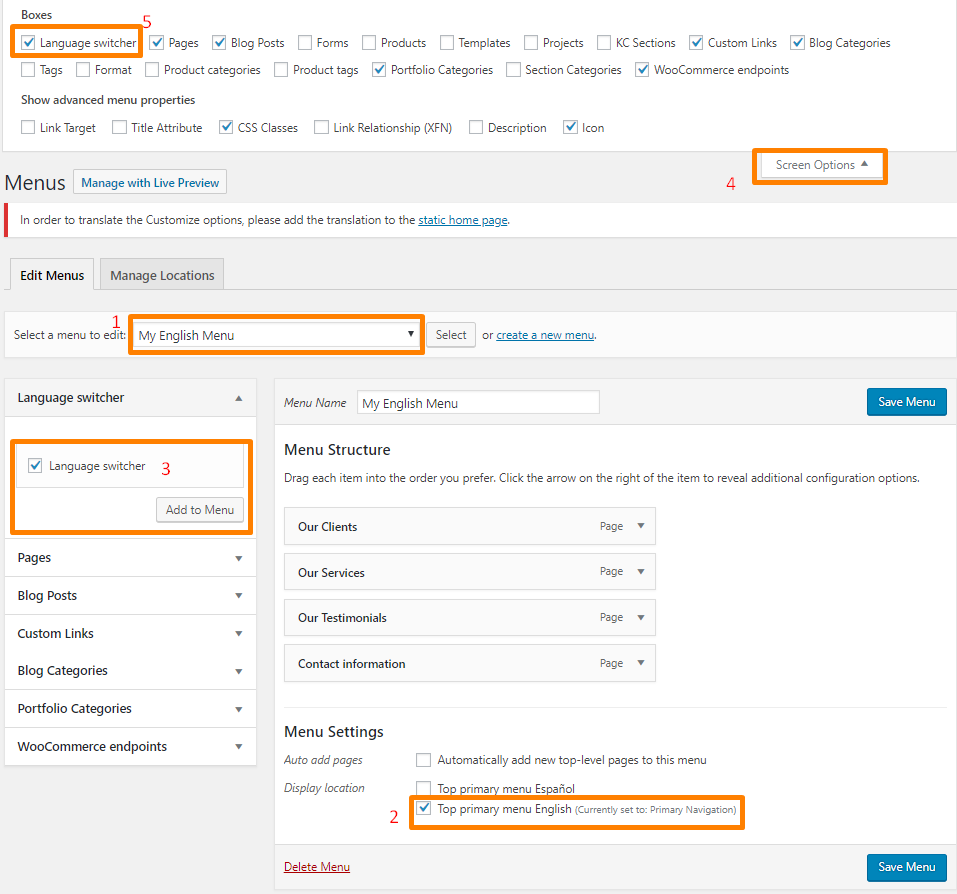
1. create one menu per language and save them
2. Under ‘Menu Settings’ assign your menus to the relevant theme location, for example, ‘My English Menu’ to ‘Primary menu English’ and ‘My Spanish Menu’ to ‘Primary menu Spanish’.
3, 4, 5 You have the possibility to add a language switcher anywhere in a menu. If you don’t see the language switcher meta box, check that it is not disabled in the screen options.
Hit the "Save Menu" button in order to save the changes.
1. Go to Appearance > Widgets
2. Click on the needed widget
3. At the bottom, you’ll find a “Language Switcher” drop-down
4. Select your language and add content
5. Click on "Save" button.

You need to translate each widget on appropriate language or choose to display it for all languages (default). If you select “All languages” you will have the possibility to translate the title in the String translations settings.
Polylang adds a new widget to display a language switcher, which lets visitors switch between versions of your posts and pages. Whatever the chosen options, the widget will display a language only if at least one post or one page has been published in this language.

IMPORTANT!
Set the language for all existing posts, pages, categories and tags otherwise they won’t be displayed on frontend.
It is mandatory to translate the static front page in all languages. If you choose a page not translated in all languages, you will get an error message and your choice will not be validated or you just can not translate the site using Customize and will get this notification:
In order to define your home page as a static page, go to Settings>Reading

Once we define the home page as a static, let's add a translation to the home page.
Previously we have created a home page in English, now we need to add a translation to this page in Spanish. You’ll find a new Languages widget at the right of the WordPress editor. The drop-down list inside enables you to switch between languages:
1. Choose the language in the drop-down list

2. You can create a new translation by clicking on the + icon.

3. Now enter a title, add the content on another language and click the "Publish" button.

4. Clicking on the "pencil" icon allows you to edit a translation.

The operation for other pages, posts, projects, categories, and tags is exactly the same.
Once you translated the home page in all languages, now you able to translate the Customize options via Polylang.

Make sure, you added a translation for each language.
1. Select "English" via language switcher
2. Translate everything in English
3. Hit the "Publish" button.
Repeat the same actions for another language.