How to sell services in WordPress via WooCommerce
When you think of a WordPress e-commerce plugin such as WooCommerce or Easy Digital Downloads, you probably imagine selling physical or digital products. Most people don’t realize that they’re also perfect for selling services online.
We will give you a short brief, how to sell services online using a WooCommerce plugin:
First of all, you need to set up the WooCommerce plugin:
- In the WordPress admin, go to Plugins -> Add New and search for ‘WooCommerce’.
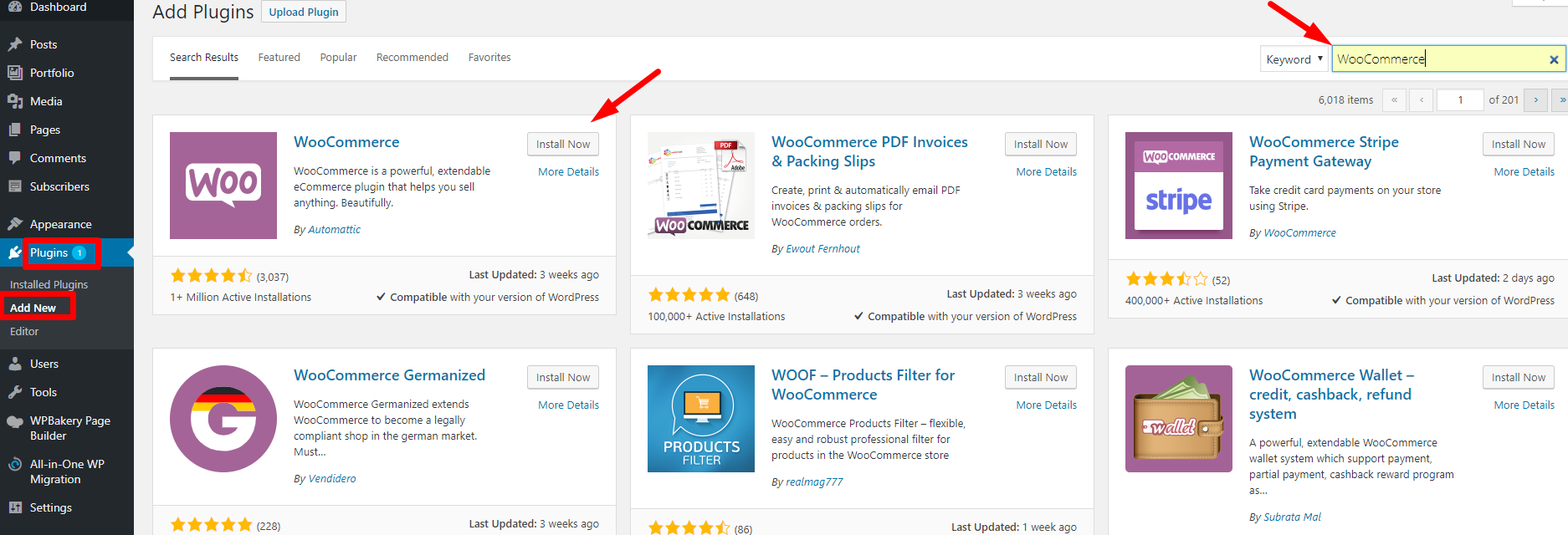
- Install the main WooCommerce plugin and activate it.

- After you activate WooCommerce, you’ll be invited to run the Setup Wizard. Do this, and choose your store currency, tax settings, etc. When it asks “Will you be shipping products?”, do not tick this box. You’re selling services, so you won’t need the shipping settings.

- On the payment gateways page, enter the email address that you use to log into PayPal to accept PayPal payments for services. I recommend Stripe for credit and debit card payments (you’ll need a Stripe.com account for this). Ideally, add PayPal and Stripe so that customers can choose how to pay for your services. If you want to give customers a ‘Pay Later’ option of paying manually offline too, choose the ‘Check’ payment option. You can then change the wording for this payment gateway as needed. (Tip – it doesn’t need to say ‘Check’ at all – this is just a handy way of creating an offline payment method in WooCommerce.)

- At the end of the Setup Wizard, click the button to Create Your First Product.
2. Add service products to WooCommerce
Ok, now that you knocked out the basics, it’s time to create your product. Though WooCommerce calls it a product, this can actually be the listing page for your service.
- Go to Products->Add new. This is where you’ll add the first service to sell in WooCommerce.
- At the top of the WordPress Editor, you can enter a title and description for your service: add a product title and description, plus categories and tags as required. Also upload a product image if you like, although this isn’t essential for selling services with WooCommerce. e.g.

Then, scroll down to the Product data box. This is important because it’s where you’ll mark that this is a service rather than a physical product. For most services, you’ll want to leave it as the default Simple product and check the Virtual box to mark that it’s a virtual product:

- Use the ‘Inventory’ tab if you only want to allow customers to purchase a single call at a time, you can go to the Inventory tab and check the Sold Individually box:
 cChecking the box is good for services that are “one-off”. For services where your customers might legitimately want to purchase multiple items, you should leave the box unchecked.
- Finally, you should also add some sort of product image:

After that, your customers can add your services to their carts and pay for them through whichever payment gateways you have enabled.