Blog page
To create a blog page that will display all your blog posts go to admin panel Pages and click Add new.
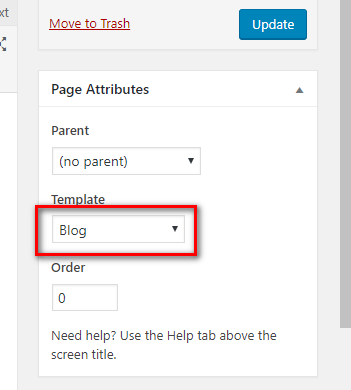
Give a title to your page and after that choose Blog in Page Attributes>Template
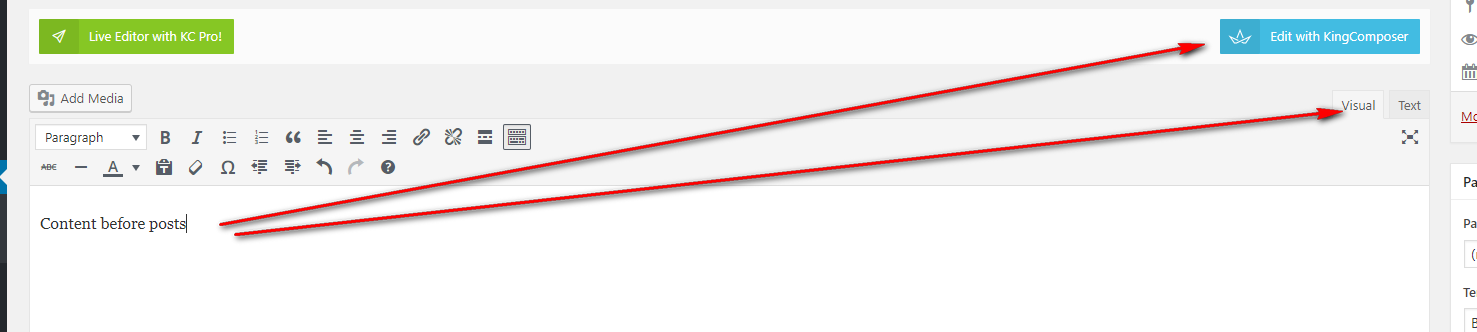
If you want any content displaying before your posts you can put it into Visual/Text editor or add it with KingComposer.
When you are done, click Publish and get your blog page.
Now you can adjust your blog settings.
Blog page options:
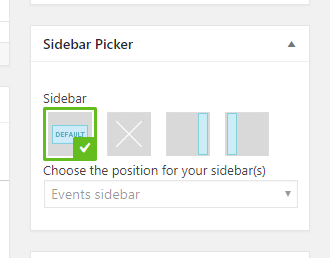
- Choose the position of your sidebars using Sidebar Picker
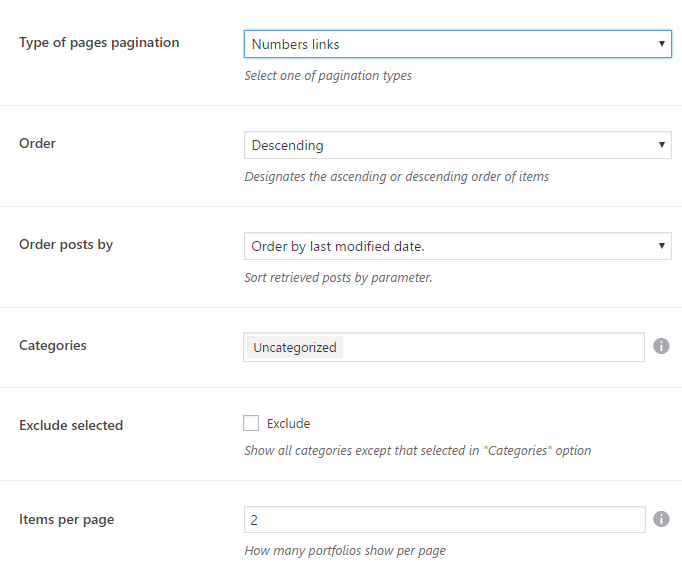
- Type of pages pagination:
- Number links - shows the page numeration

- Load more ajax - shows the Load more button

- Previous, next links - shows Prev page, Next page

- Order - Designates the ascending or descending order of items
- Order posts by - Select the sorting parameter
- Categories - Choose the post categories you want to be displayed on your blog page
- Exclude selected - if checked the categories selected above will not be displayed on your blog page
- Items per page - set number of posts that will be shown per page
Header design:
- Adjust Header Options:
- Select menu to display - choose the menu you want to display on your blog page
- Change settings? - settings will be changed only for this page. If turned off, general settings will be applied.
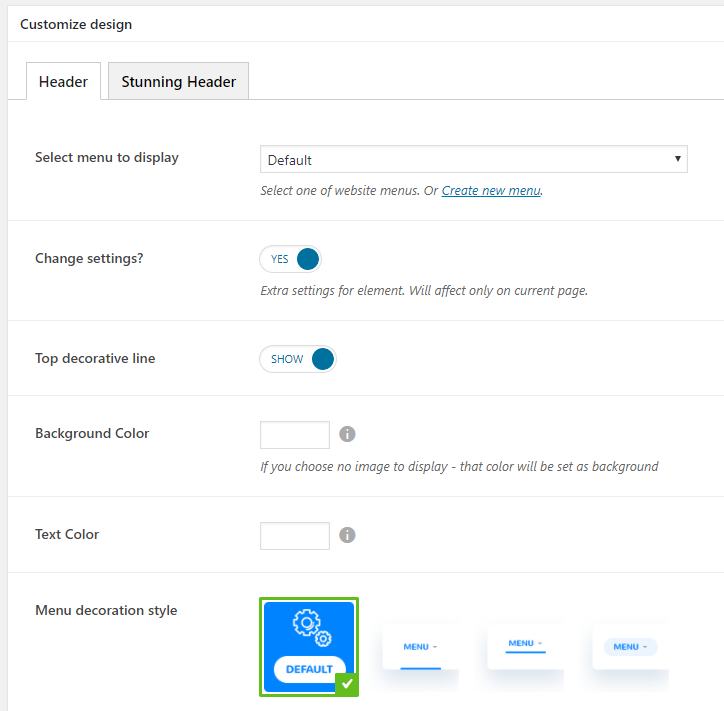
- Top decorative line - set the decorative colored line on the top of the page
- Background Color - set the background color of the header
- Text Color - set the header text color
- Menu decoration style - select one of the header styles.
- Stunning header:
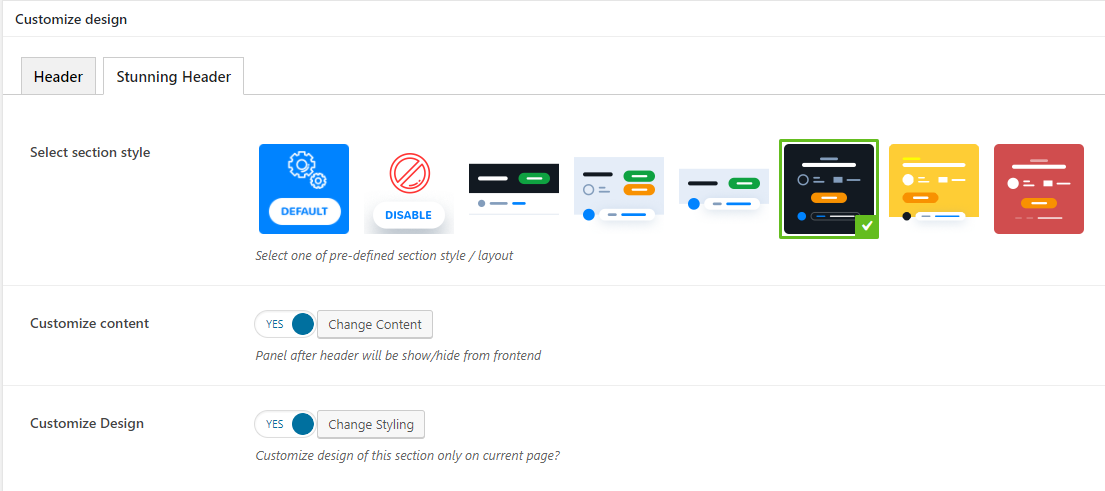
Select section style - choose the style of your stunning header
Customize content - set the elements you want to display in the stunning header: title, subtitle, category, breadcrumbs, buttons, author info, additional info.
- Customize Design - set the text and background color/image, background color and stunning header height .