
The main page builder in the theme is integrated WP Bakery Page Builder. You can edit imported pages with your own content and create new ones using available modules of the editor.
It provides backend and frontend editors. You can use one that is more convenient for you.
To start editing with Backend Editor you need to:
Start adding elements to your page. You can do it in two ways:


All elements are divided into tabs by functionality and have small thumbnails above titles to demonstrate their role in the theme.

Apart from the standard shortcodes available in the page builder, there are other exclusive modules integrated into the plugin. You can find all of them under Crumina modules tab.
Each element has a lot of customization option that is also divided into 2 tabs:



You can also put a row inside another row. It is a good solution if your row will include several columns and you want to put a background color/image to the entire row. For this simply add a new row by clicking on a PLUS icon

select Row element from the elements list

click on the PLUS icon of the added row

and select Row element once again

You will get row inside another row.

Now you can split the inner row into columns, if needed, and add elements to them.

Each section has a number of options that you can customize the way you want. Click on the 'PENCIL' icon on the top right corner of the section box to open row settings.
 The row settings are:
Rows Management
Also, there are some options allowing to manage sections on the page according to your needs. They are:
Rows reorder - allows you to reorder rows on the page: hold the 'CURSOR MOVE' icon with the left mouse and move the row to the target location on the page.
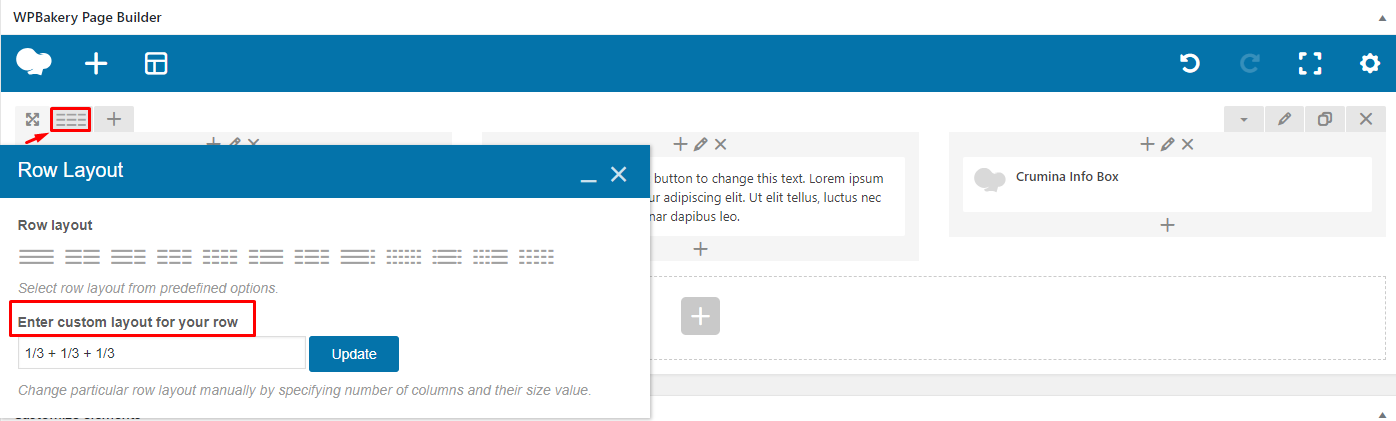
 Columns number - you can change a number of columns in the row whenever you want.

Custom layout - you can set custom layout for the row - change particular row layout manually by specifying the number of columns and their size value. The total fraction result must be 1.
Add a column - click on "plus" icon in order to add a new column

Clone the row - you can copy/clone created row and elements and paste them to any place in the editor.

In order to adjust column settings, click on "PENCIL" icon
