Table of contents:
2. Target email address configuration
3. Contact form fields customization
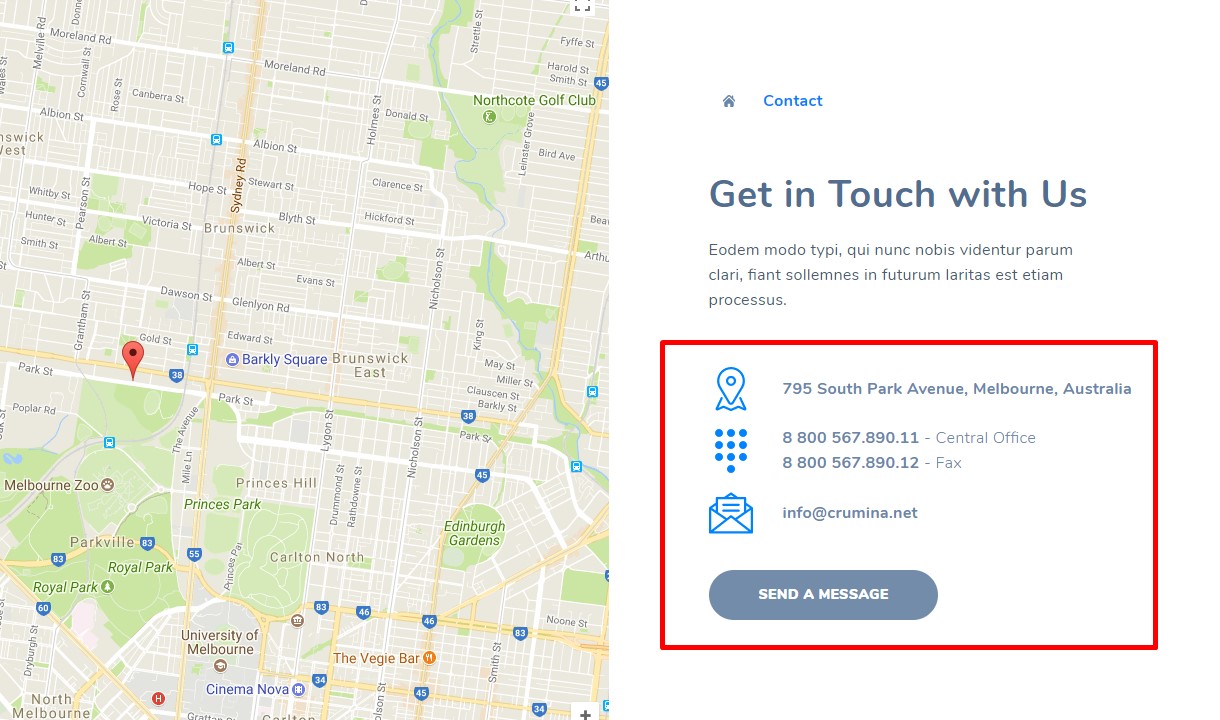
Contact form popup is an element represented by some contact information with a button, by click on which a popup window with a contact form inside it appears on page.
Contact form popup can be added:
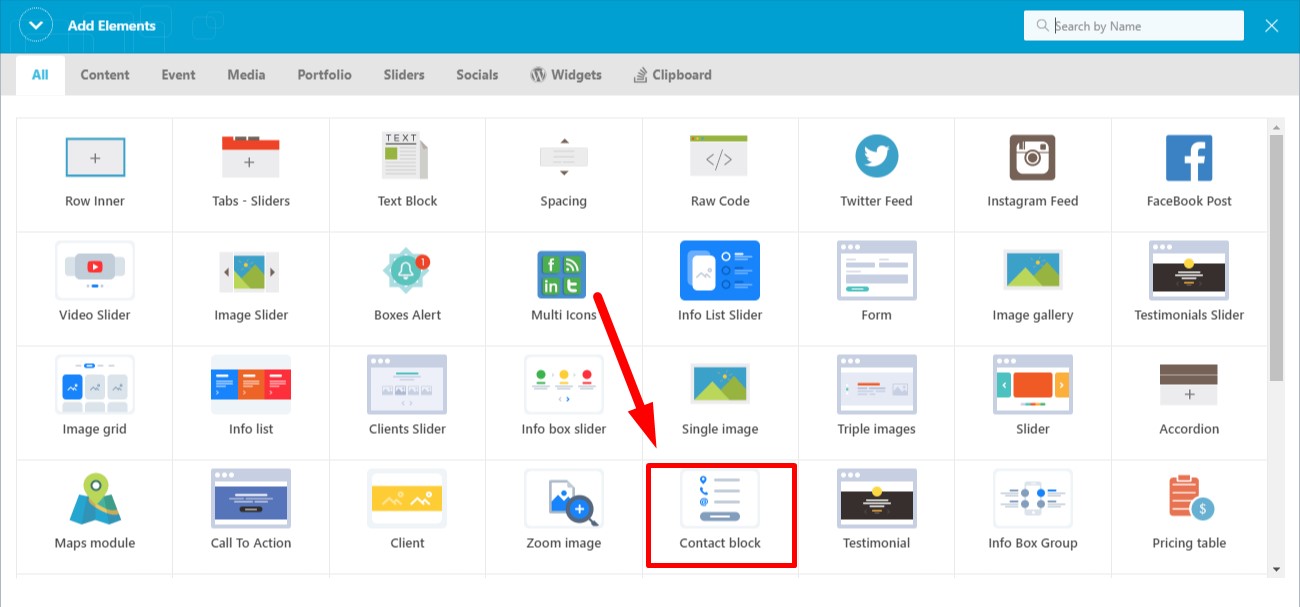
1. on pages with help of the "Contact block" shortcode of the King Composer builder
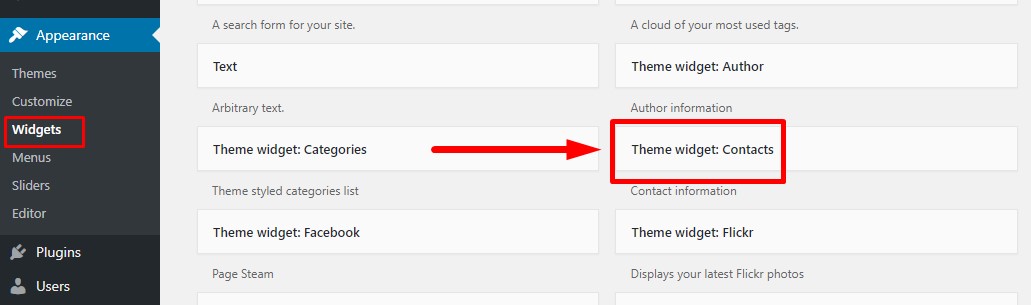
2. in the footer area or in the sidebars with help of "Theme widget: Contacts" widget
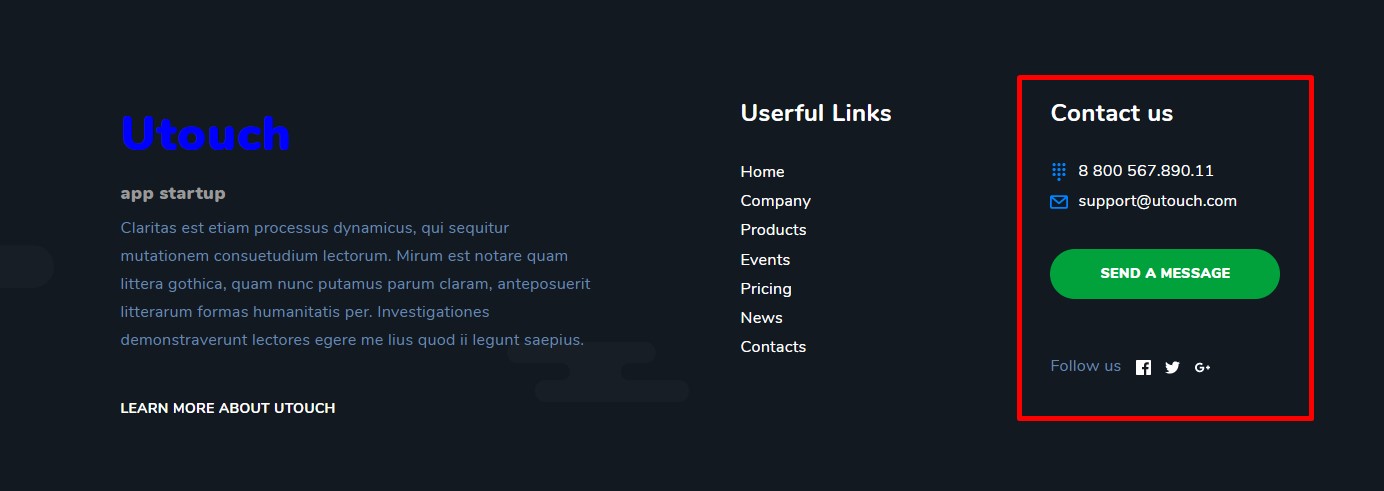
Once you installed the theme, the contact form popup is linked to the Crumina email address by default.
In order to send emails and receive them in your mailbox, you need to change the default email to yours.
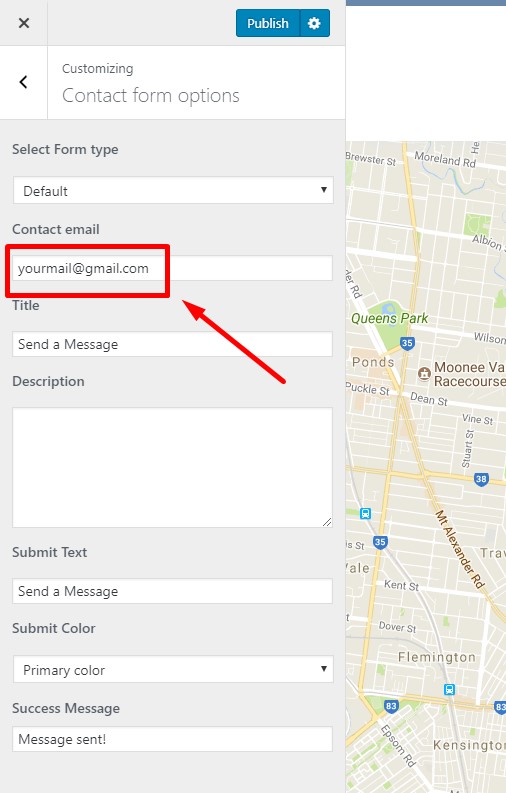
1. To change email in the "Contact block" shortcode of the King Composer builder, go to Customize > Contact form options and enter your email address in the "Contact email" field.
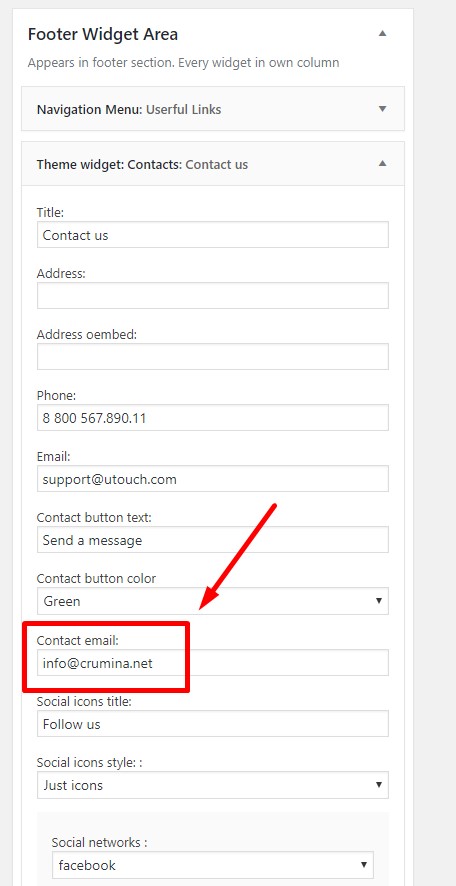
2. To change email in the "Theme widget: Contacts" widget, go to Appearance>Widgets and enter your email address in the "Contact email" field of the widget settings.
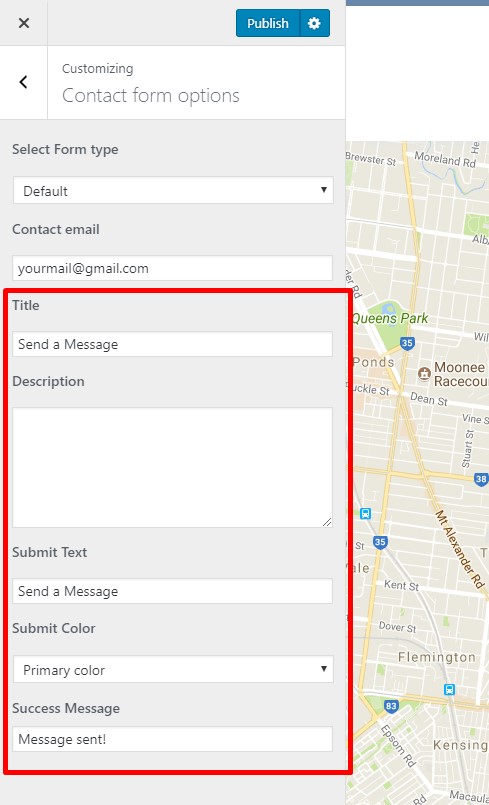
In order to customize text of the form title, subtitle, submit button, thank you message etc, you can do this in Customize > Contact form options section.
In order to translate form input fields, use languages/utouch.pot file and create PO, MO files with it. It can be done by different means, that are described in the "How to translate the theme" tutorial.
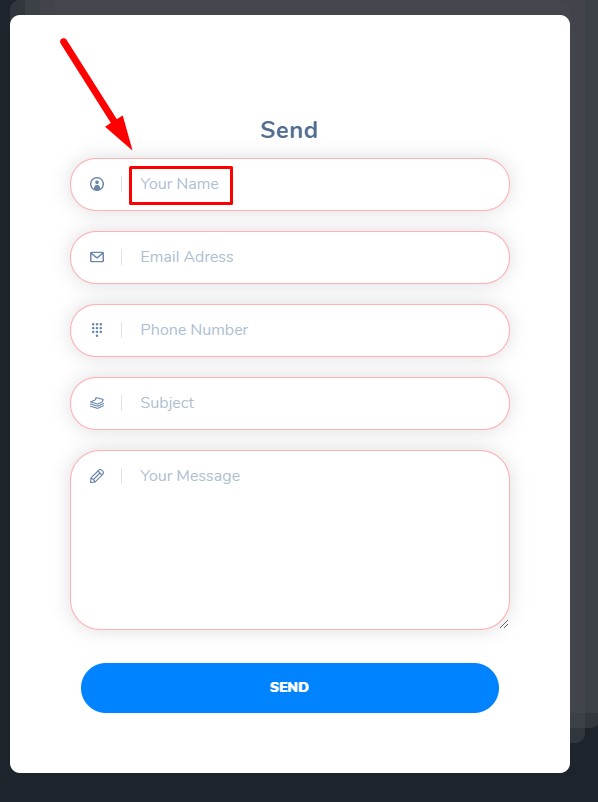
If you want to replace default form with your custom one, it can also done by 2 means:
1. Create a custom form with the Utouch Form builder. Detailed instructions are provided in the "Contact form builder" tutorial. Select the created form in Customize > Contact form options > Select Form Type > Custom Form Builder section.
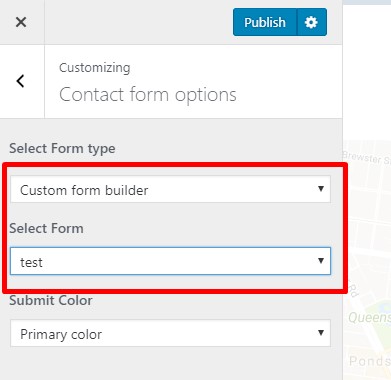
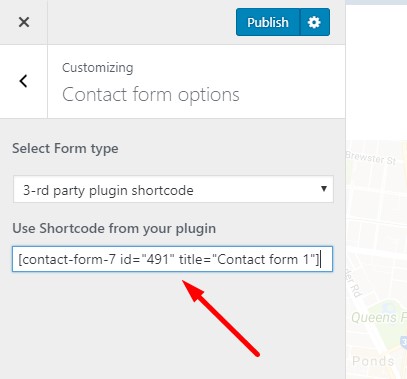
2. You can create a custom form with some third-party plugin (Contact Form 7, Gravity forms etc) and paste its shortcode in Customize > Contact form options > Select Form Type > 3-rd party plugin shortcode section.