Theme sliders
Theme sliders are created under Appearance>Sliders section. Click on Add New button, select slider type and configure general slider settings:
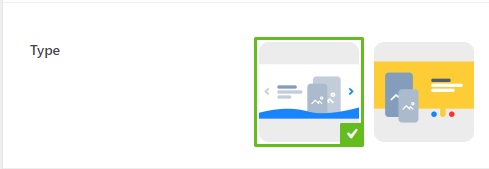
1st slider type

2nd slider type
Slider settings:
- Title - enter title of your slider
- Slider background color - set up the background color for you slider
- Fullheight slider - enable this option if you want your slider to occupy full height of your browser window
- Infinite loop - enable this option to activate autoscroll function of the slider
- Auto Scroll delay - choose time between slides change
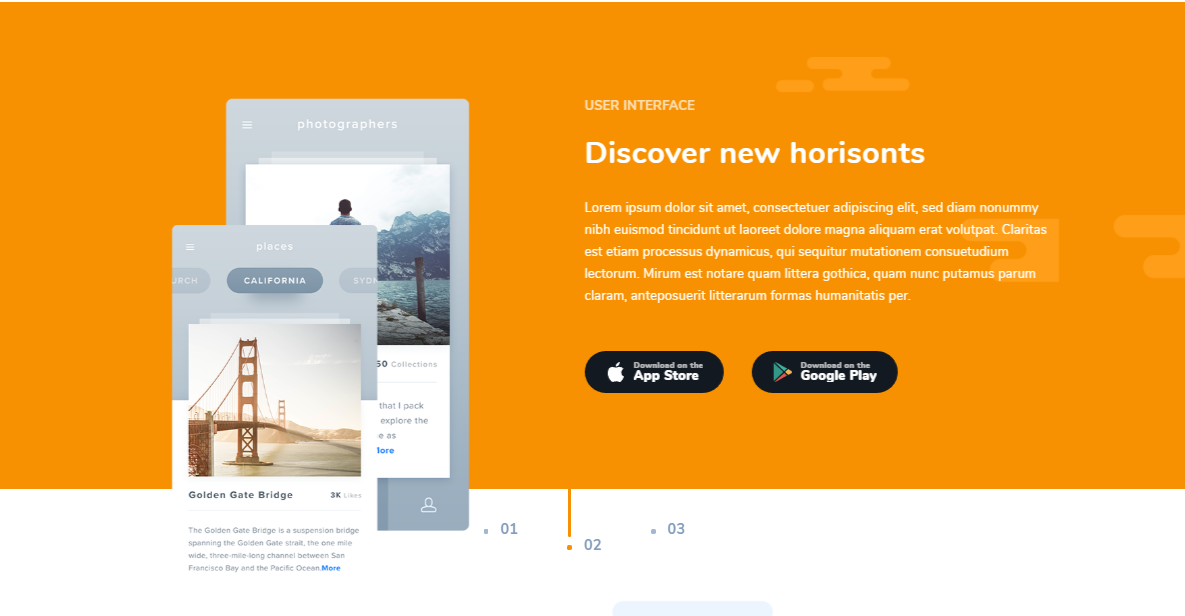
- Slide labels - these are the colored tabs under the slider. If you want to show them, enable this option.
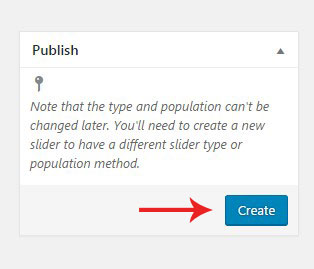
When you are done, hit Create button on the right hand side of the screen.
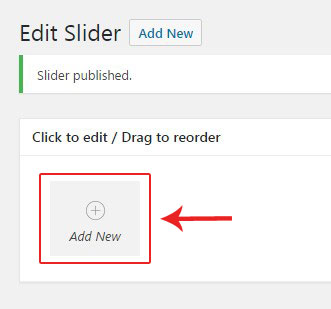
Now you are in the slides editor. Click on Add New button to add a new slide.
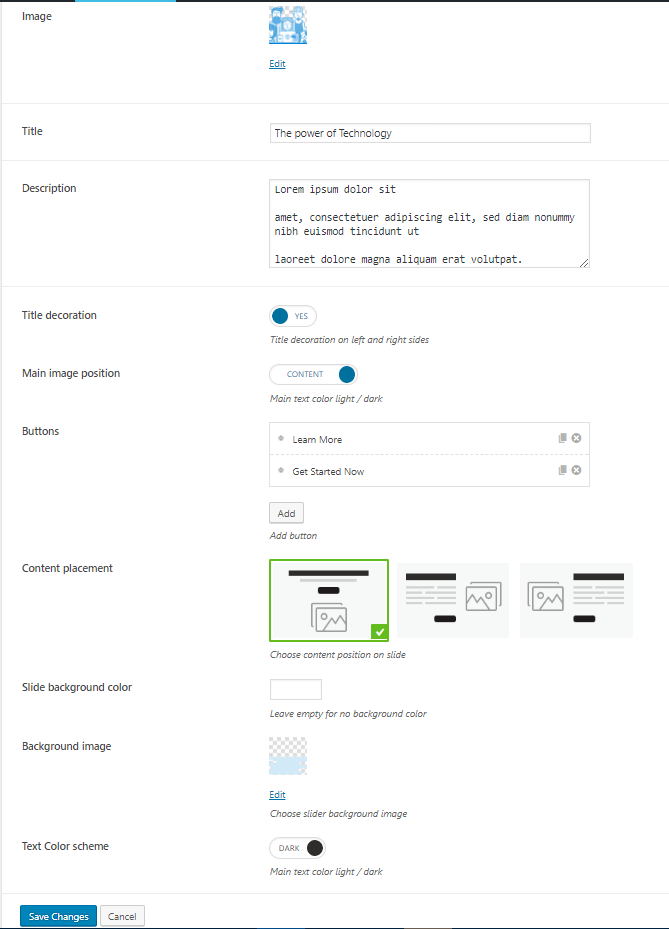
Configure the slide using the options below:
- Image - upload the image for your slide
- Title & Description - fill in these fields to display some content inside your slide.
- Buttons - add some buttons if needed and configure their settings in the Button editor.
- Content placement - there are 3 layouts of content position to choose - centered, left and right.
- Title decoration - dashes decoration on both sides of slide title
- Buttons - add some buttons if needed and configure their settings in the Button editor.
- Content placement - there are 3 layouts of content position to choose - centered, left and right.
- Slide background color - the chosen color will be displayed as a background of the bottom tabs. It will be used on the slide body too, if you don't use image as a background.
- Background image - uploaded image will be displayed on the slide's background.
- Text Color scheme - the chosen color scheme will be applied to the entire text content of the slide.